Leave your message to get our quick response
edoxi automated message icon

Graphic Design Training Course

Professional female graphic designer working on a laptop with a creative, colorful background.

Edoxi's 30-Hour Online Graphic Design Certificate Course helps you master Adobe Photoshop, Illustrator and InDesign from anywhere in the world. You gain hands-on training in branding, typography and digital media design, building a strong portfolio for global creative careers. Our flexible online classes fit your schedule, letting you learn at your own pace. Enrol today and start your graphic design journey with us!

Course Duration
30 Hours
Corporate Days
5 Days
Learners Enrolled
500+
Modules
27
star-rating-icon1
star-rating-icon2
star-rating-icon3
Course Rating
4.9
star-rating-4.9
Mode of Delivery
Online
Certification by
edoxi-accreditation-logo

What Do You Learn from Edoxi's Online Graphic Design Training

Adobe Creative Suite
Learn to use Adobe Photoshop, Illustrator, and InDesign to create professional graphics, illustrations, layouts, and marketing materials.
Graphic Design Principles
Understand typography, color theory, composition, visual hierarchy, and design fundamentals to create effective and visually appealing designs.
Brand Identity Design
Create logos, brand guidelines, and marketing materials that help businesses build a consistent and memorable brand.
Digital Design
Design social media creatives, web graphics, digital advertisements, and promotional content for modern marketing campaigns.
Print Design
Create brochures, flyers, posters, catalogues, packaging, and other print-ready materials using industry best practices.
Photo Editing and Illustration
Edit and enhance images, retouch photographs, and create digital illustrations to produce high-quality visual content.

About Our Online Graphic Design Course

Edoxi's 30-hour Online Graphic Design Course helps you build professional graphic design skills through flexible online learning and practical projects. As a leading professional training institute, Edoxi provide hands-on Graphic Design Training using Adobe Photoshop, Illustrator, InDesign, and CorelDRAW. You learn to create digital designs, branding materials, marketing assets, and print-ready artwork while building a portfolio that demonstrates your creative abilities.

Our Graphic Design Course combines expert-led instruction with real-world assignments that help you apply every concept in practice. You strengthen your understanding of typography, colour theory, layout design, branding, digital media, photo editing, and publication design. Whether you join our graphic design classes to start a creative career, upskill for your current role, or support your organisation through our customised corporate training, our practical approach helps you gain job-ready skills with confidence.

On successful completion, you receive a graphic design certificate that validates your newly acquired skills. Our competitive course fee makes professional design education accessible for learners worldwide. Contact our team for more details about the course fee, upcoming batches, training schedules, certification, and corporate training options.

Key Features of Edoxi's Online Graphic Design Course

Structured Learning Path

Progress step by step through Adobe Photoshop, Illustrator, InDesign, and CorelDRAW. We help you build your skills in a logical and easy-to-follow sequence.

Hands-On Design Projects

Complete practical assignments and real-world design projects that help you apply every concept and strengthen your creative skills.

Brand Identity Projects

Create logos, brand guidelines, colour palettes, and marketing materials to build complete brand identity solutions for your portfolio.

Publication Design Training

Design brochures, catalogues, magazines, packaging, and interactive PDF documents using professional layout techniques.

Comprehensive Learning Resources

Access recorded sessions, practice files, design templates, and workflow guides to support your learning anytime and from anywhere.

Professional Design Portfolio

Build a portfolio of creative projects that showcases your graphic design skills and helps you present your work to employers or clients.

Live Online Expert Training

Learn from experienced graphic design trainers through interactive online sessions that provide practical guidance, feedback, and personalised support.

Industry-Recognised Graphic Design Certificate

Earn a graphic design certificate after successful course completion to validate your skills and strengthen your professional profile.

Who Can Join Our Online Graphic Design Course?

Digital Marketing Professionals

Marketing executives, digital marketers, SEO specialists, PPC professionals, and campaign managers who want to create professional marketing and social media visuals.

Content Creators and Social Media Managers

Influencers, YouTubers, bloggers, social media executives, and content creators who want to design engaging digital content and branded graphics.

Architects and Interior Designers

Architects, interior designers, landscape designers, and design consultants who want to improve presentations, portfolios, mood boards, and client proposals.

Career Changers

Professionals from any industry who want to transition into graphic design, digital media, branding, or other creative careers.

Fresh Graduates and Students

Recent graduates, university students, and diploma holders who want to build job-ready graphic design skills and a professional portfolio.

Creative Professionals and Design Enthusiasts

Freelancers, artists, entrepreneurs, small business owners, and anyone passionate about design who wants to master industry-standard graphic design tools and techniques.

Graphic Design Course Modules


PHOTOSHOP

Module 1: Photoshop Introduction
  • Chapter 1.1: Overview of Photoshop

    • Lesson 1.1.1: Photoshop Repairing and Replacing Images
    • Lesson 1.1.2: Photoshop Interface
    • Lesson 1.1.3: Non-Destructive Workflow
  • Chapter 1.2: Photoshop Tools and Panels

    • Lesson 1.2.1: Control Bar
    • Lesson 1.2.2: Photoshop Panels
    • Lesson 1.2.3: Photoshop Techniques
Module 2: Photoshop Repairing and Replacing Images (Part 1)
  • Chapter 2.1: Image Repairing Tools

    • Lesson 2.1.1: Clone Tool (Remove or Replace Parts of an Image)
    • Lesson 2.1.2: Healing Brush (Fix Damages to Part or Whole of an Image)
    • Lesson 2.1.3: Red Eye Removal
    • Lesson 1.4: Content-Aware Fill
Module 3: Photoshop Repairing and Replacing Images (Part 2)
  • Chapter 3.1: Advanced Image Adjustments

    • Lesson 3.1.1: Grids, Guides, and Rulers
    • Lesson 3.1.2: Print vs Pixel
    • Lesson 3.1.3: Image Resize, Resolution, and Artwork Sizing
    • Lesson 3.1.4: Rotation and Transformation Tools
    • Lesson 3.1.5: Working with the Crop Tool
Module 4: Photoshop Layers
  • Chapter 4.1: Understanding Layers

    • Lesson 4.1.1: Understanding Layers
    • Lesson 4.1.2: Creating, Editing, and Shuffling Layers
    • Lesson 4.1.3: Merging and Flattening Layers
    • Lesson 4.1.4: Layer Palette
    • Lesson 4.1.5: Fill Layers
    • Lesson 4.1.6: Adjustment Layers
Module 5: Photoshop Practicalities
  • Chapter 5.1: Workflow Optimization

    • Lesson 5.1.1: Working with Multiple Images
    • Lesson 5.1.2: Understanding Different Image Modes
    • Lesson 5.1.3: Photoshop Keystrokes
  • Chapter 5.2: Workspace and Views

    • Lesson 5.2.1: Working with Views
    • Lesson 5.2.2: Window > Arrange
    • Lesson 5.2.3: Window > Workspace
    • Lesson 5.2.4: Image Formats
Module 6: Photoshop Colour
  • Chapter 6.1: Colour Tools and Modes

    • Lesson 6.1.1: Working with Colour
    • Lesson 6.1.2: Colour Modes
    • Lesson 6.1.3: Colour Harmony
  • Chapter 6.2: Colour Adjustments

    • Lesson 6.2.1: Colour Replacement Brush
    • Lesson 6.2.2: Hue and Saturation
    • Lesson 6.2.3: Colour Balance
    • Lesson 6.2.4: Black and White Mode
Module 7: Photoshop Filters
  • Chapter 7.1: Applying Filters

    • Lesson 7.1.1: Filter Gallery
    • Lesson 7.1.2: Liquefy
    • Lesson 7.1.3: Oil Paint
    • Lesson 7.1.4: Vanishing Point
Module 8: Photoshop Brushes
  • Chapter 8.1: Working with Brushes

    • Lesson 8.1.1: Working with Brushes
    • Lesson .1.2: Creating Brushes
    • Lesson 8.1.3: Brush Tool and Mixer Brush
    • Lesson 8.1.4: Brush Presets
Module 9: Photoshop Selection & Selection Techniques
  • Chapter 9.1: Selection Tools

    • Lesson 9.1.1: Lasso, Magnetic Lasso, and Magic Wand
    • Lesson 9.1.2: Feathering Selections
  • Chapter 9.2: Modifying and Saving Selections

    • Lesson 9.2.1: Expanding and Reducing Selections
    • Lesson 9.2.2: Modifying and Transforming Selections
    • Lesson 9.2.3: Quick Masks
    • Lesson 9.2.4: Save/Load a Selection
Module 10: Photoshop Automation
  • Chapter 10.1: Automating Processes

    • Lesson 10.1.1: Contact Sheets
    • Lesson 10.1.2: Batch Processing
    • Lesson 10.1.3: Photoshop Merge and Panoramic
  • Chapter 10.2: Working with Panoramas

    • Lesson 10.2.1: Blending Panoramas
    • Lesson 10.2.2: Editing Panoramas
    • Lesson 10.2.3: Automation Options
Module 11: Photoshop Masking
  • Chapter 11.1: Masking Techniques

    • Lesson 11.1.1: Quick Masks
    • Lesson 11.1.2: Quick Mask Mode
    • Lesson 11.1.3: Creating Accurate Masks
    • Lesson 11.1.4: Adding to and Removing from a Mask
Module 12: Photoshop Round Tripping (Part 1)
  • Chapter 12.1: File Management

    • Lesson 12.1.1: Placing Photoshop Files in DTP Software
    • Lesson 12.1.2: Editing Photoshop Files
    • Lesson 12.1.3: Save/Load a Selection
Module 13: Photoshop Round Tripping (Part 2)
  • Chapter 13.1: Working with Type

    • Lesson 13.1.1: Creating Type
    • Lesson 13.1.2: Editing Type
    • Lesson 13.1.3: Type Masks
    • Lesson 13.1.4: Type & FX Effects
    • Lesson 13.1.5: Shaping Type
    • Lesson 13.1.6: Type & Good Design
Module 14: Photoshop Colour (Advanced)
  • Chapter 14.1: Colour Models and Palettes

    • Lesson 14.1.1: Colour Palettes
    • Lesson 14.1.2: Colour Models (CMYK, RGB, LAB)
  • Chapter 14.2: Gradients and Colour Matching

    • Lesson 14.2.1: Gradients: Creating and Editing
    • Lesson 14.2.2: Mixing and Matching Colours
    • Lesson 14.2.3: Pantones and Spot Colours
    • Lesson 14.2.4: Colour Profiles

ILLUSTRATOR

Module 1: Introduction to Adobe Illustrator
  • Chapter 1.1: Overview and Basic Tools

    • Lesson 1.1.1: Overview of Adobe Illustrator
    • Lesson 1.1.2: Basic Tools and Techniques of Adobe Illustrator
Module 2: Creating and Editing Artwork
  • Chapter 2.1: Working with Shapes

    • Lesson 2.1.1: Create and Edit Shapes to Create Artwork for a Postcard
    • Lesson 2.1.2: Transform and Edit Artwork
  • Chapter 2.2: Color and Strokes

    • Lesson 2.2.1: Change Color and Strokes
    • Lesson 2.2.2: Blend Colors and Shapes
Module 3: Text and Drawing Tools
  • Chapter 3.1: Adding and Customizing Text

    • Lesson 3.1.1: Add Text to Your Designs
    • Lesson 3.1.2: Working with Type
  • Chapter 3.2: Drawing Tools

    • Lesson 3.2.1: Create with Drawing Tools
    • Lesson 3.2.2: Drawing with the Pen and Pencil Tools
    • Lesson 3.2.3: Working with Perspective Drawing
Module 4: Color and Painting
  • Chapter 4.1: Advanced Coloring Techniques

    • Lesson 4.1.1: Color and Painting
    • Lesson 4.1.2: Explore Creativity with Effects and Graphic Styles
Module 5: Organizing and Managing Artwork
  • Chapter 5.1: Organizing Content

    • Lesson 5.1.1: Organize Content with Layers
    • Lesson 5.1.2: Work with Artboards
  • Chapter 5.2: Managing Artwork Elements

    • Lesson 5.2.1: Add Images and Artistic Effects
    • Lesson 5.2.2: Applying Effects
    • Lesson 5.2.3: Transforming Objects
Module 6: Advanced Design Techniques
  • Chapter 6.1: Creating Logos and Designs

    • Lesson 6.1.1: Create Logos with Brushes
    • Lesson 6.1.2: Applying Appearance Attributes and Graphic Styles
  • Chapter 6.2: Symbols and Sharing

    • Lesson 6.2.1: Working with Symbols
    • Lesson 6.2.2: Share Artwork

INDESIGN

Module 1: InDesign Tools
  • Chapter 1.1: Exploring the InDesign Interface

    • Lesson 1.1.1: The Document Window
    • Lesson 1.1.2: The Toolbar
    • Lesson 1.1.3: Navigating Through an InDesign Document
    • Lesson 1.1.4: Changing the Magnification of Your Document
  • Chapter 1.2: Working with Type and Styles

    • Lesson 1.2.1: Working with Type
    • Lesson 1.2.2: Using Styles
    • Lesson 1.2.3: Applying Paragraph Styles
Module 2: Building Documents with Master Pages
  • Chapter 2.1: Setting Up Custom Documents

    • Lesson 2.1.1: Creating Custom Page Sizes
    • Lesson 2.1.2: Creating a New Custom-Sized Document
  • Chapter 2.2: Master Pages and Layouts

    • Lesson 2.2.1: Creating and Formatting Master Pages
    • Lesson 2.2.2: Adding Layout Pages
    • Lesson 2.2.3: Adding Images and Text to the Master Frames
Module 3: Working with Text & Type
  • Chapter 3.1: Text Basics

    • Lesson 3.1.1: Adding Text to Your Document
    • Lesson 3.1.2: Creating a Text Frame
  • Chapter 3.2: Text Formatting

    • Lesson 3.2.1: Changing Character Attributes
    • Lesson 3.2.2: Changing Font and Type Styles
    • Lesson 3.2.3: Adjusting Line Spacing
    • Lesson 3.2.4: Adjusting Character Spacing: Kerning and Tracking
    • Lesson 3.2.5: Changing Paragraph Attributes
    • Lesson 3.2.6: Horizontally Aligning Text
    • Lesson 3.2.7: Changing the Spacing Before and After Paragraphs
    • Lesson 3.2.8: Using Tabs
  • Chapter 3.3: Advanced Text Editing

    • Lesson 3.3.1: Checking Spelling
    • Lesson 3.3.2: Finding and Changing Text and Attributes
    • Lesson 3.3.3: Editing Text Using the Story Editor
    • Lesson 3.3.4: Drag-and-Drop Text Editing
    • Lesson 3.3.5: Adjusting Inline Text
    • Lesson 3.3.6: Vertically Aligning Text
  • Chapter 3.4: Importing and Threading Text

    • Lesson 3.4.1: Importing Text
    • Lesson 3.4.2: Threading Text Between Frames
    • Lesson 3.4.3: Changing the Number of Columns in a Text Frame
    • Lesson 3.4.4: Importing Text from Microsoft Word
    • Lesson 3.4.5: Finding and Fixing Missing Fonts
  • Chapter 3.5: Object and Text Styles

    • Lesson 3.5.1: Using Object Styles
    • Lesson 3.5.2: Applying Object Styles to Text
Module 4: Working with Graphics
  • Chapter 4.1: Graphics Management

    • Lesson 4.1.1: Understanding How InDesign Handles Graphics
    • Lesson 4.1.2: Locating Missing Images
    • Lesson 4.1.3: Working with the Links Panel
    • Lesson 4.1.4: Customizing the Links Panel
  • Chapter 4.2: Image Placement and Adjustments

    • Lesson 4.2.1: Fitting an Image Within an Existing Frame
    • Lesson 4.2.2: Using Auto Fitting
    • Lesson 4.2.3: Using Object Styles for Images
    • Lesson 4.2.4: Wrapping Text Around the Bounding Box
    • Lesson 4.2.5: Using Graphics with Clipping Paths and Alpha Channels
    • Lesson 4.2.6: Removing an Image Background Using InDesign
  • Chapter 4.3: Importing Advanced Graphics

    • Lesson 4.3.1: Importing Layered Photoshop Files
    • Lesson 4.3.2: Importing InDesign Layouts as Graphics
Module 5: Working with Tables
  • Chapter 5.1: Table Creation and Importing

    • Lesson 5.1.1: Creating a Table
    • Lesson 5.1.2: Creating New Tables Within a Table
    • Lesson 5.1.3: Copying and Pasting Table Information
    • Lesson 5.1.4: Converting Text to a Table and a Table to Text
    • Lesson 5.1.5: Importing a Table
  • Chapter 5.2: Table Editing and Formatting

    • Lesson 5.2.1: Editing Table and Table Options
    • Lesson 5.2.2: Changing Row Height and Column Width
    • Lesson 5.2.3: Editing Rows and Columns
    • Lesson 5.2.4: Resetting Cell Styles Within a Table
    • Lesson 5.2.5: Formatting Text Within a Cell and Saving Paragraph Styles
  • Chapter 5.3: Graphics in Tables

    • Lesson 5.3.1: Using Graphics in Tables
Module 6: Using Color in Your Documents
  • Chapter 6.1: Applying Colors

    • Lesson 6.1.1: Applying Colors to Frames and Text
    • Lesson 6.1.2: Creating and Saving a New Swatch
    • Lesson 6.1.3: Applying Strokes to Text
  • Chapter 6.2: Advanced Color Adjustments

    • Lesson 6.2.1: Creating a Tint Reduction
    • Lesson 6.2.2: Making a Dashed Stroke
    • Lesson 6.2.3: Creating and Saving Gradients
    • Lesson 6.2.4: Linear Gradients
    • Lesson 6.2.5: Saving a Gradient
    • Lesson 6.2.6: Adjusting Fill Opacity
    • Lesson 6.2.7: Radial Gradient
    • Lesson 6.2.8: Adjusting the Direction of a Radial Gradient
Module 7: Applying Colors to Multiple Objects
  • Chapter 7.1: Color Management

    • Lesson 7.1.1: Updating and Editing Colors
    • Lesson 7.1.2: Colorizing a Grayscale Image
Module 8: Using Effects
  • Chapter 8.1: Applying Creative Effects

    • Lesson 8.1.1: Creative Effects and Drop Shadow
    • Lesson 8.1.2: Adjusting Effects for Objects
    • Lesson 8.1.3: Bevel and Emboss
    • Lesson 8.1.4: Using Object Styles with Effects
  • Chapter 8.2: Advanced Effects

    • Lesson 8.2.1: Using Find/Change to Apply Object Styles
    • Lesson 8.2.2: The Gradient Feather Tool
    • Lesson 8.2.3: Converting Text to a Path
    • Lesson 8.2.4: Applying Blending Modes to Objects

Download Graphic Design Course Brochure

Real-World Projects and Practical Activities in Our Graphic Design Classes

Throughout our Online Graphic Design Classes, you work on practical projects and industry-based activities that help you apply your learning, strengthen your creative skills, and build a professional design portfolio for real-world opportunities. The key projects and activities you will be engaged in include

Projects

  • Advanced Photo Retouching Project

    Edit, enhance, and retouch fashion and product photographs using Adobe Photoshop while practising colour correction, compositing, and professional image editing techniques.

  • Commercial Print Design Project

    Create flyers, brochures, posters, and other print-ready materials while learning print layouts, colour management, and file preparation for commercial printing.

  • Brand Identity Design Project

    Design a complete brand identity that includes logos, typography, colour palettes, brand guidelines, and marketing assets using Adobe Illustrator.

  • Apparel and Merchandise Design Activity

    Create custom T-shirt graphics, promotional merchandise, and branded products using vector design techniques and production-ready artwork.

  • Publication Layout Design Workshop

    Design magazines, brochures, catalogues, and multi-page publications in Adobe InDesign using professional layout tools, grids, master pages, and styles.

  • Digital Marketing and Packaging Design

    Design product packaging, social media graphics, web banners, and promotional creatives for integrated print and digital marketing campaigns.

Graphic Design Course Outcome and Career Opportunities

Edoxi’s Graphic Design Course equips you with a comprehensive skill set that applies to various roles within the Art, Media, and communication industry. Here are the major outcomes and careers after our Online Graphic Design Training

Course Outcome Image
Create professional visual designs for print, digital, branding, and marketing projects.
Use Adobe Photoshop, Adobe Illustrator, and Adobe InDesign confidently to produce industry-standard creative assets.
Apply design principles, typography, colour theory, and layout techniques to communicate ideas effectively.
Develop logos, brand identities, brochures, social media graphics, packaging, and other marketing materials.
Collaborate effectively with clients, marketing teams, and creative professionals while managing design projects.
Build a professional graphic design portfolio that showcases your creativity and technical expertise.

Job Roles To Pursue After Completing Edoxi’s Graphic Design Course and Certification

  • Graphic Designer
  • Visual Designer
  • Brand Identity Designer
  • Marketing Graphic Designer
  • Digital Graphic Designer
  • Social Media Designer
  • Publication Designer
  • Packaging Designer
  • UI Designer (Entry Level)
  • Creative Designer
  • Production Artist
  • Freelance Graphic Designer

Graphic Design Training Options

Live Online Training

  • 30-hour Online Graphic Design Training

  • Interactive Virtual Sessions

  • Flexible Learning Platform

  • Individual Project Support

  • Session Recordings Access

  • Software installation support

Corporate Training

  • Customisable Training Program

  • Flexible Schedule Options

  • Comprehensive Resource Package

  • On-site Training Available

  • Team-specific Content Adaptation

  • Training delivered at a selected hotel, client premises or Edoxi

Do You Want a Customised Training for Graphic Design?

Get expert assistance in getting you Graphic Design Course customised!

How to Get Graphic Design Certified Online?

Here’s a four-step guide to becoming a certified Graphic Design professional.
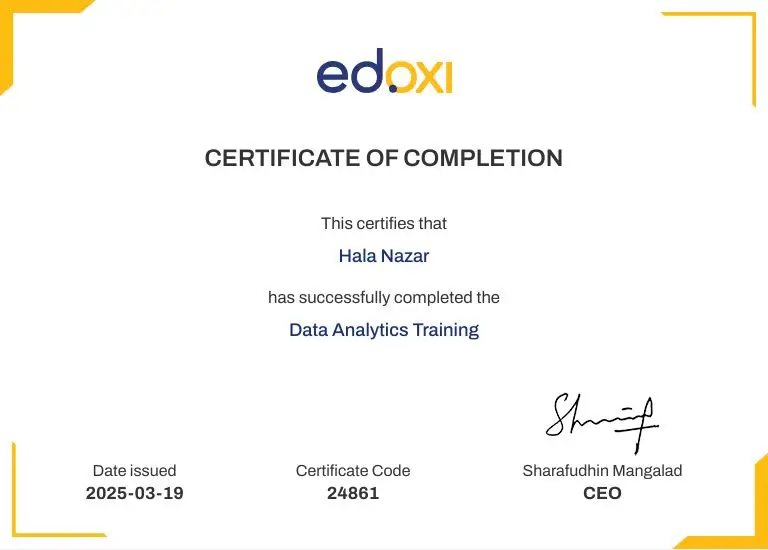
Do You Want to be a Certified Professional in Graphic Design?

Join Edoxi’s Graphic Design Course

Why Choose Edoxi for Graphic Design Training?

Choose Edoxi's Graphic Design Course to build practical design skills, learn from experienced trainers, and create a professional portfolio that prepares you for creative career opportunities. Here’s why most professionals and organisations choose us for Graphic Design Training

Leading Global Training Institute

Learn with a trusted training provider that has been delivering industry-focused Graphic Design Training to learners and organisations worldwide since 2018.

Expert-Led Online Training

Learn from experienced graphic design trainers who guide you through every stage of your learning with practical insights and personalised support.

Hands-On Adobe Creative Suite Training

Build practical skills in Adobe Photoshop, Illustrator, InDesign, and CorelDRAW using real-world design projects and industry workflows.

Portfolio-Focused Learning

Create branding, digital, print, and marketing design projects that strengthen your portfolio and showcase your creative skills.

Interactive Live Online Classes

Join engaging graphic design classes that encourage collaboration, practical learning, and regular trainer feedback.

Personalised Learning Support

Receive individual guidance, project reviews, and continuous support to help you improve your design skills with confidence.

Flexible Corporate Training

Choose customised corporate training that aligns with your team's learning goals, business requirements, and preferred schedule.

Industry-Recognised Graphic Design Certificate

Earn a graphic design certificate that validates your skills and strengthens your professional profile for creative opportunities.

students-image

Edoxi is Recommended by 95% of our Students

Meet Our Mentor

Our mentors are leaders and experts in their fields. They can challenge and guide you on your road to success!

mentor-image

Ghanashyambhai Bhagvanbhai Vaghani

Ghanashyambhai Bhagvanbhai Vaghani is a Graphic & 3D Visualization Trainer with over 15 years of training experience. His expertise spans multiple disciplines, including interior design, graphic design, 3Ds Max and UI/UX development. Ghanashyambhai is an Adobe Creative Suite Specialist with expertise in Photoshop, Illustrator, InDesign, Premiere Pro, After Effects, and Blender. He is also a highly sought-after corporate trainer with exceptional skills in digital content creation and architectural visualization. During his career, he has guided over 5,000 students through professional design education.

He holds a Diploma in Animation and Visual Effects from Frameboxx India and has served as faculty at prestigious institutions, including IIFT and IDT India. His experience with E Train India has further refined his ability to deliver effective technical training. Ghanashyambhai employs a practical, project-based teaching methodology. His approach combines technical training with real-world applications.

Locations Where Edoxi Offers Graphic Design Course

Here is the list of other major locations where Edoxi offers Graphic Design Course

FAQ

Is Edoxi's Graphic Design Course suitable for beginners?

Yes. Edoxi's Graphic Design Course is suitable for beginners, career changers, students, and working professionals. We start with design fundamentals and gradually guide you to advanced design techniques through practical online learning.

What are the prerequisites for joining Edoxi's Graphic Design Course?

There are no mandatory prerequisites. Basic computer skills, an interest in creativity, and a willingness to learn are enough to join our Graphic Design Training. No previous design experience is required.

What do you learn in Edoxi's Graphic Design Course?

You learn Adobe Photoshop, Illustrator, InDesign, and CorelDRAW along with typography, colour theory, branding, print design, digital marketing design, photo editing, publication design, and portfolio development through practical projects.

Is Edoxi's Graphic Design Course available online?

Yes. We deliver our Graphic Design Course through live online sessions, giving you the flexibility to learn from anywhere while interacting with expert trainers and completing practical design projects.

Which software do you learn during Edoxi's Graphic Design Training?

Our Graphic Design Training covers Adobe Photoshop, Adobe Illustrator, Adobe InDesign, and CorelDRAW. You use these industry-standard tools to create professional digital and print designs.

How does Edoxi teach Graphic Design online?

We combine live instructor-led sessions, hands-on exercises, real-world projects, portfolio development, and continuous trainer feedback. This practical approach helps you apply every concept with confidence.

What projects do you complete during Edoxi's Graphic Design Course?

You create logos, brand identities, social media graphics, brochures, posters, packaging, catalogues, publication layouts, and marketing materials. These projects help you build a professional design portfolio.

Do you build a portfolio during Edoxi's Graphic Design Course?

Yes. Throughout our Graphic Design Course, you create real-world design projects that become part of your professional portfolio, helping you showcase your creative and technical skills.

Do you receive a graphic design certificate after completing the course?

Yes. After completing Edoxi's Graphic Design Course, you receive a graphic design certificate that validates your skills and course completion.

Is Graphic Design a good career choice?

Yes. Graphic design continues to offer strong career opportunities across digital marketing, branding, advertising, publishing, e-commerce, media, technology, and freelance businesses. Skilled designers remain in demand worldwide.

What job roles can you apply for after completing Edoxi's Graphic Design Course?

You can apply for roles such as Graphic Designer, Visual Designer, Brand Identity Designer, Digital Graphic Designer, Marketing Graphic Designer, Publication Designer, Packaging Designer, Creative Designer, Social Media Designer, UI Designer, or Freelance Graphic Designer.

Can you become a freelance Graphic Designer after completing Edoxi's Graphic Design Course?

Yes. Our Graphic Design Training helps you build practical skills and a professional portfolio that supports freelance work, remote opportunities, and client-based projects.

Do you need drawing skills to join Edoxi's Graphic Design Course?

No. You do not need drawing skills. Creativity, design thinking, and learning professional design software are more important. We teach you the practical techniques required for modern graphic design.

How long does it take to complete Edoxi's Graphic Design Course?

Our Graphic Design Course takes 30 hours to complete. The structured online format helps you build practical skills within a short learning period.

What is the difference between Adobe Photoshop, Illustrator, and InDesign?

Adobe Photoshop focuses on photo editing and image manipulation. Adobe Illustrator is used for logos, vector graphics, and illustrations. Adobe InDesign helps you create brochures, magazines, catalogues, books, and other multi-page publications.