
Leave your message to get our quick response
edoxi automated message icon

MicroStation Training Course

Modern laboratory setup featuring a microscope and research tools.
Edoxi’s 40-Hour Online MicroStation Software Training equips you with practical skills for civil, architectural, and infrastructure design applications. Gain hands-on expertise in 2D and 3D CAD design for infrastructure projects and get certified. Enrol now!
 
 
Course Duration
40 Hours
Corporate Days
5 Days
Learners Enrolled
50+
Modules
13
star-rating-icon1
star-rating-icon2
star-rating-icon3
Course Rating
5
star-rating-5
Mode of Delivery
Online
Certification by

What Do You Learn from Edoxi's Online MicroStation Training

Introduction to MicroStation
You learn MicroStation’s interface and basic functionality. You practise essential tools and navigation techniques for efficient design workflows.
2D Drawing Essentials
You learn to create precise technical drawings using AccuDraw and SmartLine tools. You develop skills for complex geometric constructions and pattern creation.
Annotation and Dimensioning
You learn to apply professional text styles and dimensioning standards to drawings. You create clear documentation that meets industry specifications.
Customisation and Advanced 2D Features
You learn to configure workspaces and customise tool settings for optimal productivity. You learn element manipulation and transformation techniques.
Introduction to 3D Design
You learn 3D modelling fundamentals and coordinate systems. You create basic 3D objects and understand view manipulation.
3D Modelling Techniques
You learn to develop complex infrastructure models using solid modelling tools. You practise mesh creation and surface manipulation for realistic designs.
Output and Visualisation
You learn to generate high-quality renderings and documentation for stakeholders. You export designs to various formats, including 3D PDFs.
Managing References and Linked Models
You learn to attach and manage external references and linked models in MicroStation. You streamline coordination and collaboration across complex infrastructure projects.

About Our Online MicroStation Course

Edoxi’s 40-hour online Bentley MicroStation Software Training offers a practical, industry-focused introduction to professional CAD design for the architecture, engineering, and construction sectors. The training is designed for engineers, designers, and drafting professionals who want to enhance their technical capabilities and contribute more effectively to infrastructure projects. You learn how MicroStation supports complex design workflows, why it is preferred for large-scale AEC environments, and how it improves accuracy and productivity in day-to-day project execution.

Throughout the online Bentley MicroStation Software course, you work directly with MicroStation’s powerful 2D and 3D tools while exploring its role in real-world infrastructure and industrial applications. You practise 2D drafting, develop 3D models, and participate in collaborative project reviews that mirror actual workplace scenarios. These hands-on activities strengthen your ability to work efficiently within AEC project teams.

The training emphasises advanced CAD workflows that are essential for professional design environments. You learn reference file management, cell library usage, and multi-level design strategies. You also gain experience handling raster images, integrating point cloud data, and using geospatial tools such as ArcGIS and Google Earth to support location-based design requirements.

By the end of the online Bentley MicroStation software course, you can confidently work within MicroStation to deliver precise designs and well-structured documentation. The skills you acquire help standardise workflows, improve collaboration, and increase design accuracy within organisations. You also position yourself for specialised roles in the competitive and growing infrastructure development sector.

Key Features of Edoxi's MicroStation Training

Real-world Infrastructure Design Projects

You can work on actual civil, architectural, and utility design scenarios reflecting industry requirements.

Comprehensive Study Materials

You can access course manuals, video tutorials, DWG/DGN templates, and Bentley documentation for continuous learning.

Interactive Project Reviews

You can participate in regular peer feedback sessions to enhance design skills through collaborative assessment and improvement suggestions.

2D-to-3D Workflow Mastery

You can learn efficient techniques for converting 2D drawings into detailed 3D models for infrastructure applications.

Cross-platform Compatibility Training

You can develop skills for seamless file exchange between MicroStation and AutoCAD environments.

Industry-standard Templates

You can practice with professionally configured templates used by leading engineering and construction firms.

Who Can Join Our Online MicroStation Course?

Architects and Designers

If you are a professional seeking advanced technical drawing capabilities for complex projects.

CAD Technicians

If you are a drafter looking to expand your skill set beyond AutoCAD.

Civil Engineers

If you are an engineer needing specialised tools for infrastructure and utility projects.

Project Managers

If you are a supervisor requiring a better understanding of technical design processes.

GIS and Mapping Professionals

If you are a specialist working with geospatial data and infrastructure planning.

Corporate Teams

If you are an organisation that standardises design workflows across departments.

MicroStation Course Modules

Module 1: Introduction to MicroStation
  • Chapter 1.1: Getting Started with MicroStation

    • Lesson 1.1.1: Introduction to MicroStation
    • Lesson 1.1.2: Overview of the User Interface
    • Lesson 1.1.3: Setting Up a New Project
  • Chapter 1.2: Navigating the Interface

    • Lesson 1.2.1: Main Toolbox and Miscellaneous Tools
    • Lesson 1.2.2: Keyboard Navigation and Mouse Controls
    • Lesson 1.2.3: View Windows
    • Lesson 1.2.4: MicroStation File Types
Module 2: Drawing Essentials
  • Chapter 2.1: Basic Drawing Setup

    • Lesson 2.1.1: Workspace and User Settings
    • Lesson 2.1.2: Basic Engineering Drawing Concepts
    • Lesson 2.1.3: Fundamentals of MicroStation Drawing
  • Chapter 2.2: Drawing Tools and Units

    • Lesson 2.2.1: Setting Your Working Unit
    • Lesson 2.2.2: Working on Coordinate Axis
    • Lesson 2.2.3: Working with Drawing Aids
    • Lesson 2.2.4: Using AccuDraw and SmartLine
    • Lesson 2.2.5: Understanding the Seed Files
  • Chapter 2.3: Element Placement and Modification

    • Lesson 2.3.1: Creating Elements using Placement Tools
    • Lesson 2.3.2: Selecting Elements
    • Lesson 2.3.3: Drawing, Editing and Modifying Elements
Module 3: Create a Sketch using Draw Tools and Level
  • Chapter 3.1: 2D Drawing and Modifications

    • Lesson 3.1.1: Basic 2D Drawing Commands
    • Lesson 3.1.2: Modification Commands
    • Lesson 3.1.3: Manipulating Groups of Elements
  • Chapter 3.2: Working with Levels

    • Lesson 3.2.1: Creating Level as Architectural Plan
    • Lesson 3.2.2: Creating Level as Structural Plan
    • Lesson 3.2.3: Creating Level as an Industrial Plan
    • Lesson 3.2.4: Working on Drawing Based on Levels
Module 4: Selecting and Modifying Elements
  • Chapter 4.1: Element Selection and Identification

    • Lesson 4.1.1: Identifying and Selecting Elements
    • Lesson 4.1.2: Selecting Elements Based on Attributes
    • Lesson 4.1.3: Viewing Element Information
  • Chapter 4.2: Patterns and Hatching

    • Lesson 4.2.1: Working with Hatch Pattern and Gradient
    • Lesson 4.2.2: Hatching and Patterning
    • Lesson 4.2.3: Using Cells for Patterning
Module 5: Annotation and Dimensioning
  • Chapter 5.1: Working with Text and Annotations

    • Lesson 5.1.1: Annotation and Drawing Composition
    • Lesson 5.1.2: Centralising Annotation in Large Projects
    • Lesson 5.1.3: Working with Text and Editing Text
    • Lesson 5.1.4: Placing Text as Scale Drawing
  • Chapter 5.2: Dimensioning and Measuring

    • Lesson 5.2.1: Measurement Tools and Techniques
    • Lesson 5.2.2: Dimension Elements, Tools & Styles
    • Lesson 5.2.3: Dimensioning and Measuring
    • Lesson 5.2.4: Tagged Elements
    • Lesson 5.2.5: Placing Dimension as Scale Drawing
  • Chapter 5.3: Detailing and Tables

    • Lesson 5.3.1: Place Note and Label
    • Lesson 5.3.2: Working with Section Detailing
    • Lesson 5.3.3: Creating Tables
    • Lesson 5.3.4: Creating Bill of Materials (BOM)
Module 6: Working with Fence and Cell Libraries
  • Chapter 6.1: Special Tools and Utilities

    • Lesson 6.1.1: Special and Custom Features
    • Lesson 6.1.2: Special Tools and Utilities
  • Chapter 6.2: Fence Tools and Cell Libraries

    • Lesson 6.2.1: Working with Fence Tools
    • Lesson 6.2.2: Working with Cells and Cell Libraries
    • Lesson 6.2.3: Annotation Cells
Module 7: Working with Isometric Views
  • Chapter 7.1: Isometric Drawing Techniques

    • Lesson 7.1.1: Introduction to Isometric Drawing
    • Lesson 7.1.2: Navigating Views
    • Lesson 7.1.3: Working on Isometric Drawings
Module 8: References and Attach Tools
  • Chapter 8.1: Managing References

    • Lesson 8.1.1: Working with Model View and Model Flyout
    • Lesson 8.1.2: Working with References
    • Lesson 8.1.3: Attaching and Managing References
Module 9: Working with Raster Tools and Point Cloud Data
  • Chapter 9.1: Raster Tools

    • Lesson 9.1.1: Attaching Raster and Coordinate Systems
    • Lesson 9.1.2: Understanding Raster and Vector Images
    • Lesson 9.1.3: Working with Raster Image Files
    • Lesson 9.1.4: Scaling, Clipping, Rotating, Moving, Mirroring
    • Lesson 9.1.5: Binding Maps
  • Chapter 9.2: Point Cloud and GIS Integration

    • Lesson 9.2.1: Attach and Detach Point Cloud Data
    • Lesson 9.2.2: Clip and Delete Clip
    • Lesson 9.2.3: Import/Export to Google Earth and ArcGIS
Module 10: Introduction to 3D Modelling
  • Chapter 10.1: 3D Modelling Concepts

    • Lesson 10.1.1: Introduction to 3D Modelling
    • Lesson 10.1.2: Types of 3D Modelling: Solid, Surface, Mesh, Feature
    • Lesson 10.1.3: Solid Construction and Modelling
    • Lesson 10.1.4: Solid Utilities, Meshes and Surfaces
    • Lesson 10.1.5: Conceptual Modelling and Meshes
  • Chapter 10.2: Basic 3D Drawing Tools

    • Lesson 10.2.1: 3D Drawing Fundamentals
    • Lesson 10.2.2: 3D Basics and View Controls
    • Lesson 10.2.3: Using AccuDraw in 3D
    • Lesson 10.2.4: Basic 3D Drawing Tools
Module 11: Working with 3D Modelling
  • Chapter 11.1: Solid and Surface Modelling

    • Lesson 11.1.1: Creating 3D Models and Primitives
    • Lesson 11.1.2: Creating and Modifying Solids
    • Lesson 11.1.3: Creating and Modifying Features
    • Lesson 11.1.4: Surface Modelling Techniques
    • Lesson 11.1.5: Surface Utilities and Primitives
  • Chapter 11.2: Mesh Modelling

    • Lesson 11.2.1: Creating Mesh Models
    • Lesson 11.2.2: Modifying Meshes
    • Lesson 11.2.3: Mesh Utilities
Module 12: Plot and Publishing the Sheets
  • Chapter 12.1: Sheet Management

    • Lesson 12.1.1: Numbering Sheets and Drawings
    • Lesson 12.1.2: Working with Title Blocks
    • Lesson 12.1.3: Drawing Title Identifiers
    • Lesson 12.1.4: Sheet Names and Numbers
    • Lesson 12.1.5: Design History
    • Lesson 12.1.6: Plot and Printing Techniques
Module 13: Output and Visualisation
  • Chapter 13.1: Visualisation and Export

    • Lesson 13.1.1: Visualising a 3D Design
    • Lesson 13.1.2: Creating Sheets
    • Lesson 13.1.3: Exporting to 3D PDF

Download MicroStation Course Brochure

Hands-On Exercises in the Online MicroStation Training

Edoxi’s MicroStation course includes real-world activities and case studies designed to provide hands-on experience in 2D engineering drawings for civil, mechanical, and electrical disciplines. These include:

The GuidePlate

learn to create a precision guide plate with accurate dimensions and mounting holes. This helps you to apply proper industry dimensioning standards to produce professional technical drawings.

Support Base

learn to design a structural support base with multiple mounting points. You also learn to utilise 3D modelling techniques to ensure proper load distribution and realistic engineering outcomes.

Adapter Bracket (Mounting)

learn to develop a versatile adapter bracket with multiple connection points. You also learn to implement proper filleting and chamfering for manufacturing considerations in mechanical part design.

Mounting Plate

learn to design a mounting plate with bolt patterns and alignment features. This helps you to apply appropriate material thickness based on specific load requirements encountered in real industrial environments.

Isometric Drawing

learn to generate comprehensive isometric views of mechanical assemblies. This helps you demonstrate correct spatial relationships between component elements in three dimensions to enhance visual clarity and design accuracy.

Clevis Bracket

learn to model a clevis bracket with pin holes and mounting surfaces. This helps you implement appropriate clearances for moving mechanical components to reflect real-world mechanical design standards.

Bearing Housing

learn to design a detailed bearing housing with proper fits and tolerances. You also learn about lubrication features tailored for industrial rotating equipment applications.

Housing Pin

learn to create a precision housing pin with critical dimensional tolerances. You also learn to create surface finish specifications suitable for high-stress mechanical connections.

MicroStation Course Outcome and Career Opportunities

Completing Edoxi’s MicroStation Training equips you with industry-relevant CAD capabilities and enhances your career prospects in infrastructure design and engineering. Here are the Major Course Outcomes:

Course Outcome Image
Gain in-demand CAD skills that strengthen your ability to work on complex infrastructure and construction projects.
Learn to create accurate, standardised technical drawings that significantly reduce design errors and rework.
Develop the capability to streamline infrastructure design workflows, improving overall project efficiency and delivery timelines.
Enhance your professional competitiveness, enabling you to qualify for large-scale construction and engineering contracts.
Acquire specialised MicroStation skills that support career progression into high-demand technical and analytical roles.
Build the ability to collaborate efficiently with project teams by managing shared files and references in large infrastructure designs.

Career Opportunities After the MicroStation Course

  • Drafter
  • 3D Modeller
  • Infrastructure Modeller
  • BIM Coordinator
  • CAD Technician
  • Design Engineer
  • Civil CAD Designer
  • Structural Draftsman
  • GIS Technician
  • CAD Project Coordinator

MicroStation Training Options

Live Online Training

  • 40 Hours of Live Online Training

  • Flexible Scheduling for Working Professionals

  • Interactive Virtual Lab Environment

  • Screen Sharing for Troubleshooting

Corporate Training

  • 5 Days of Corporate Training

  • Dedicated Computer Lab with MicroStation

  • Hands-on Project Development Sessions

  • Personalized 1:1 Attention

  • Flexible Delivery Options (On-Site / Edoxi Office / Hotel)

  • Fly-Me-a-Trainer Option

  • Logistics, food and refreshments provided for corporate teams

Do You Want a Customised Training for MicroStation?

Get expert assistance in getting you MicroStation Course customised!

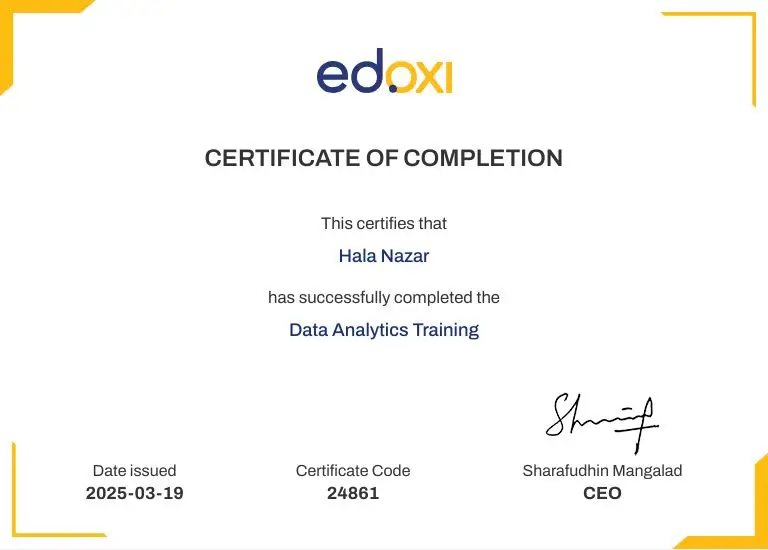
How To Get Certified in The Online MicroStation Course?

Here’s a four-step guide to becoming a certified MicroStation professional.
Do You Want to be a Certified Professional in MicroStation?

Join Edoxi’s MicroStation Course

Why Choose Edoxi for Online MicroStation Training?

Edoxi’s Bentley MicroStation Course provides you with practical CAD expertise, real-industry guidance, and a globally relevant learning experience. Here’s why you should choose Edoxi

Expert Industry Practitioners as Trainers

At Edoxi, you learn from trainers with extensive real-world experience on major international engineering and infrastructure projects. This gives you insights you can immediately apply.

Global Standards with Localised Expertise

Edoxi offers worldwide accessibility and globally recognised training methods. This ensures you develop skills aligned with international design practices while adapting them to your regional project needs.

Practical, Real-Project Learning Approach

You spend most of your training working on actual infrastructure-style exercises. So, you can gain hands-on expertise that prepares you for real workplace scenarios.

Professionally Equipped Learning Environment

Edoxi provides purpose-built training facilities and optimised online setups that mirror modern design studios. This allows you to practise using industry-standard hardware and software.

students-image

Edoxi is Recommended by 95% of our Students

Meet Our Mentor

Our mentors are leaders and experts in their fields. They can challenge and guide you on your road to success!

mentor-image

Madhava RA

Madhava RA is a highly experienced civil engineering professional with over 30 years of industry expertise, including 15 years in specialized CAD and infrastructure design training. He holds both a Bachelor’s Degree in Civil Engineering (B.E.) and a Diploma in Civil Engineering (DCE). His diverse certification portfolio includes MicroStation, AutoCAD Civil 3D, REVIT Suite, TEKLA, STAAD Pro, ArcGIS, and several advanced structural analysis applications. This makes him a versatile instructor capable of guiding learners across multiple CAD platforms and engineering design disciplines.

Madhava has successfully trained more than 3,000 students, helping them develop practical skills to excel in real-world engineering projects. His teaching approach blends theoretical knowledge with practical insights, ensuring learners gain both competence and confidence in applying design tools. His ability to simplify complex concepts, deliver industry-relevant training, and mentor aspiring engineers makes him a trusted guide for professionals seeking career growth in engineering and design.

Locations Where Edoxi Offers MicroStation Training Course

Here are the major international locations where Edoxi offers MicroStation Training Course

FAQ

What is the difference between AutoCAD and MicroStation?
 MicroStation uses DGN design files, whereas AutoCAD uses DWG drawing files. With Edoxi’s training, you learn how MicroStation’s stronger reference file management supports large and complex infrastructure projects with greater stability.
Why should I choose MicroStation over other CAD software?
 MicroStation excels in infrastructure-focused design. Through Edoxi’s training, you gain access to advanced civil engineering tools, efficient referencing options, and multi-user collaboration features that enhance technical productivity.
What industrial features make MicroStation valuable?
 MicroStation offers dedicated tools for terrain modelling, utility design, and infrastructure workflows. Edoxi helps you understand how Bentley’s ecosystem strengthens end-to-end engineering processes.
How can our organisation measure ROI from MicroStation training?
 Edoxi’s online MicroStation training supports faster project turnaround, fewer design errors, reduced rework, and improved competitiveness in infrastructure tenders—key factors that contribute to strong ROI.
How can we transition our team from AutoCAD to MicroStation efficiently?
 Edoxi offers focused cross-platform modules that help your team adapt AutoCAD knowledge to MicroStation workflows, maintaining productivity while strengthening platform-specific skills.
Do I need prior CAD experience to join Edoxi’s MicroStation course?
 There is no mandatory prerequisite for the Bentley MicroStation course, and Edoxi starts your learning journey with foundational concepts before guiding you into advanced MicroStation workflows.
How does Edoxi’s MicroStation course benefit my engineering career?
Edoxi’s MicroStation training equips you with high-demand skills used across the UAE’s expanding infrastructure and construction sector, increasing your professional value and opening opportunities for career advancement.
Can I use my AutoCAD knowledge in MicroStation?
 Yes. Many concepts align, and Edoxi shows you how to transition your existing CAD skills while learning MicroStation’s unique capabilities.
Is Edoxi’s MicroStation training suitable for corporate engineering teams?
 Yes. Edoxi provides customised corporate training tailored to your organisation’s project requirements, workflow needs, and engineering standards.
What tools and technologies do I learn alongside MicroStation?
 Edoxi includes integrations with AutoCAD, ArcGIS, Google Earth, and Global Mapper to help you create efficient end-to-end infrastructure design workflows.