Leave your message to get our quick response
edoxi automated message icon

Graphic Design Course in Riyadh

Professional graphic design course promotion image with designer at laptop
Edoxi’s 30-hour Graphic Design course in Riyadh develops professional skills in Adobe Photoshop, Illustrator, and InDesign. Gain hands-on expertise in photo editing, illustration, branding, print, and digital media design. Work on projects like brand identity, brochures, social media graphics, and packaging. Build a strong professional portfolio & prepare for creative roles in graphic design, visual design, and art direction. Enrol now to start a creative career in Riyadh.
 
Course Duration
30 Hours
Corporate Days
5 Days
Learners Enrolled
200+
Modules
8
star-rating-icon1
star-rating-icon2
star-rating-icon3
Course Rating
5
star-rating-5
Mode of Delivery
Online
Classroom
Certification by

What Do You Learn from Edoxi's Graphic Design Training

Master Adobe Creative Suite Essentials
Gain expertise in Photoshop, Illustrator, and InDesign with advanced design techniques.
Professional Design Principles
Learn typography, colour theory, composition, and visual storytelling for impactful designs.
Branding & Identity Design
Create complete brand identities, including logos, style guides, and marketing collateral.
Digital & Marketing Design
Design eye-catching social media posts, web graphics, and digital marketing assets.
Print Design & Production
Produce professional brochures, catalogues, packaging, and other print materials.
Photo Editing & Illustration
Enhance photos, craft digital illustrations, and apply creative effects with precision.

About Our Graphic Design Course in Riyadh

​Edoxi's 30-hour professional Graphic Design course in Riyadh offers comprehensive training in graphic design, focusing on the Adobe Creative Suite.​ Gain hands-on experience with Photoshop, Illustrator & InDesign to build creative expertise for a professional design career in Riyadh. The Graphic Design course is available in both classroom and online formats, with customised corporate training options to suit specific client requirements.

Our Graphic Design curriculum covers essential design principles such as typography, colour psychology, and composition fundamentals, alongside practical applications in branding, digital media, print design, photo editing, and illustration. Get real-world design experience through projects, workshops, and portfolio-building assignments. With small batch sizes and personalised guidance from expert instructors, participants receive focused attention and practical insights.

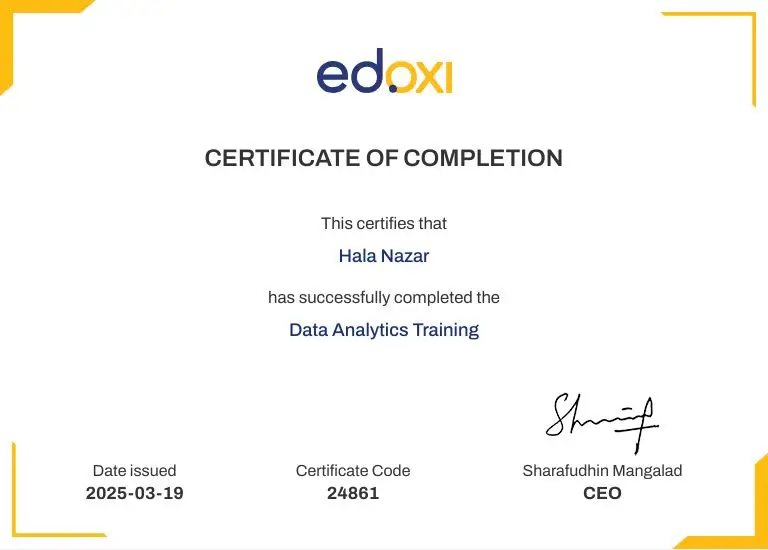
This Graphic Design course is ideal for professionals, students, and creatives looking to enhance visual communication skills. Upon completion of the Graphic Design course, professionals can earn the Graphic Design course completion certificate. This credential validates your skills to design compelling social media content, web graphics, marketing collateral, and professional print materials.

For more details on our Graphic Design course fees (based on learning format), syllabus, and customised corporate, online, or classroom training schedules, contact our Edoxi team.

Enrol now to earn a career as a Junior Graphic Designer, Visual Designer, or Art Director in Riyadh’s dynamic creative industry.

Key Features of Edoxi's Graphic Design Training

Hands-On Assignments & Projects

Apply key design concepts through targeted assignments for each software, reinforcing learning and practical application.

Brand Development Projects

Develop complete brand identity packages via guided case studies. Create style guides covering typography, colour palettes, and logo variations.

Publication Design Workshop

Master professional layout techniques for brochures and product catalogues in InDesign. Learn to create interactive PDFs and digital publishing formats.

Comprehensive Learning Resources

Access shortcut guides, recorded sessions, and exercise files for efficient workflows and continuous practice.

Who Can Join Edoxi’s Graphic Design Course in Riyadh?

Digital Marketing Professionals

Digital marketers can enhance their visual content creation skills. The course provides specialised training in social media design.

Content Creators and Social Media Managers

Content creators learn professional design tools for online platforms. Social media managers develop skills for creating engaging visuals.

Architects and Interior Designers

Design professionals strengthen their digital visualisation capabilities. The course complements existing technical drawing knowledge.

Career Transitioners

Professionals from any field can start design careers. The course builds foundational skills for creative industry roles.

Fresh Graduates

Recent graduates develop practical skills for design positions. The training prepares them for entry-level creative roles.

Creative Enthusiasts

Art enthusiasts can transform their passion into professional skills. The course provides technical training for creative expression.

Graphic Design Course Modules


PHOTOSHOP

Module 1: Photoshop Introduction
  • Chapter 1.1: Overview of Photoshop

    • Lesson 1.1.1: Photoshop Repairing and Replacing Images
    • Lesson 1.1.2: Photoshop Interface
    • Lesson 1.1.3: Non-Destructive Workflow
  • Chapter 1.2: Photoshop Tools and Panels

    • Lesson 1.2.1: Control Bar
    • Lesson 1.2.2: Photoshop Panels
    • Lesson 1.2.3: Photoshop Techniques
Module 2: Photoshop Repairing and Replacing Images (Part 1)
  • Chapter 2.1: Image Repairing Tools

    • Lesson 2.1.1: Clone Tool (Remove or Replace Parts of an Image)
    • Lesson 2.1.2: Healing Brush (Fix Damages to Part or Whole of an Image)
    • Lesson 2.1.3: Red Eye Removal
    • Lesson 1.4: Content-Aware Fill
Module 3: Photoshop Repairing and Replacing Images (Part 2)
  • Chapter 3.1: Advanced Image Adjustments

    • Lesson 3.1.1: Grids, Guides, and Rulers
    • Lesson 3.1.2: Print vs Pixel
    • Lesson 3.1.3: Image Resize, Resolution, and Artwork Sizing
    • Lesson 3.1.4: Rotation and Transformation Tools
    • Lesson 3.1.5: Working with the Crop Tool
Module 4: Photoshop Layers
  • Chapter 4.1: Understanding Layers

    • Lesson 4.1.1: Understanding Layers
    • Lesson 4.1.2: Creating, Editing, and Shuffling Layers
    • Lesson 4.1.3: Merging and Flattening Layers
    • Lesson 4.1.4: Layer Palette
    • Lesson 4.1.5: Fill Layers
    • Lesson 4.1.6: Adjustment Layers
Module 5: Photoshop Practicalities
  • Chapter 5.1: Workflow Optimization

    • Lesson 5.1.1: Working with Multiple Images
    • Lesson 5.1.2: Understanding Different Image Modes
    • Lesson 5.1.3: Photoshop Keystrokes
  • Chapter 5.2: Workspace and Views

    • Lesson 5.2.1: Working with Views
    • Lesson 5.2.2: Window > Arrange
    • Lesson 5.2.3: Window > Workspace
    • Lesson 5.2.4: Image Formats
Module 6: Photoshop Colour
  • Chapter 6.1: Colour Tools and Modes

    • Lesson 6.1.1: Working with Colour
    • Lesson 6.1.2: Colour Modes
    • Lesson 6.1.3: Colour Harmony
  • Chapter 6.2: Colour Adjustments

    • Lesson 6.2.1: Colour Replacement Brush
    • Lesson 6.2.2: Hue and Saturation
    • Lesson 6.2.3: Colour Balance
    • Lesson 6.2.4: Black and White Mode
Module 7: Photoshop Filters
  • Chapter 7.1: Applying Filters

    • Lesson 7.1.1: Filter Gallery
    • Lesson 7.1.2: Liquefy
    • Lesson 7.1.3: Oil Paint
    • Lesson 7.1.4: Vanishing Point
Module 8: Photoshop Brushes
  • Chapter 8.1: Working with Brushes

    • Lesson 8.1.1: Working with Brushes
    • Lesson .1.2: Creating Brushes
    • Lesson 8.1.3: Brush Tool and Mixer Brush
    • Lesson 8.1.4: Brush Presets
Module 9: Photoshop Selection & Selection Techniques
  • Chapter 9.1: Selection Tools

    • Lesson 9.1.1: Lasso, Magnetic Lasso, and Magic Wand
    • Lesson 9.1.2: Feathering Selections
  • Chapter 9.2: Modifying and Saving Selections

    • Lesson 9.2.1: Expanding and Reducing Selections
    • Lesson 9.2.2: Modifying and Transforming Selections
    • Lesson 9.2.3: Quick Masks
    • Lesson 9.2.4: Save/Load a Selection
Module 10: Photoshop Automation
  • Chapter 10.1: Automating Processes

    • Lesson 10.1.1: Contact Sheets
    • Lesson 10.1.2: Batch Processing
    • Lesson 10.1.3: Photoshop Merge and Panoramic
  • Chapter 10.2: Working with Panoramas

    • Lesson 10.2.1: Blending Panoramas
    • Lesson 10.2.2: Editing Panoramas
    • Lesson 10.2.3: Automation Options
Module 11: Photoshop Masking
  • Chapter 11.1: Masking Techniques

    • Lesson 11.1.1: Quick Masks
    • Lesson 11.1.2: Quick Mask Mode
    • Lesson 11.1.3: Creating Accurate Masks
    • Lesson 11.1.4: Adding to and Removing from a Mask
Module 12: Photoshop Round Tripping (Part 1)
  • Chapter 12.1: File Management

    • Lesson 12.1.1: Placing Photoshop Files in DTP Software
    • Lesson 12.1.2: Editing Photoshop Files
    • Lesson 12.1.3: Save/Load a Selection
Module 13: Photoshop Round Tripping (Part 2)
  • Chapter 13.1: Working with Type

    • Lesson 13.1.1: Creating Type
    • Lesson 13.1.2: Editing Type
    • Lesson 13.1.3: Type Masks
    • Lesson 13.1.4: Type & FX Effects
    • Lesson 13.1.5: Shaping Type
    • Lesson 13.1.6: Type & Good Design
Module 14: Photoshop Colour (Advanced)
  • Chapter 14.1: Colour Models and Palettes

    • Lesson 14.1.1: Colour Palettes
    • Lesson 14.1.2: Colour Models (CMYK, RGB, LAB)
  • Chapter 14.2: Gradients and Colour Matching

    • Lesson 14.2.1: Gradients: Creating and Editing
    • Lesson 14.2.2: Mixing and Matching Colours
    • Lesson 14.2.3: Pantones and Spot Colours
    • Lesson 14.2.4: Colour Profiles

ILLUSTRATOR

Module 1: Introduction to Adobe Illustrator
  • Chapter 1.1: Overview and Basic Tools

    • Lesson 1.1.1: Overview of Adobe Illustrator
    • Lesson 1.1.2: Basic Tools and Techniques of Adobe Illustrator
Module 2: Creating and Editing Artwork
  • Chapter 2.1: Working with Shapes

    • Lesson 2.1.1: Create and Edit Shapes to Create Artwork for a Postcard
    • Lesson 2.1.2: Transform and Edit Artwork
  • Chapter 2.2: Color and Strokes

    • Lesson 2.2.1: Change Color and Strokes
    • Lesson 2.2.2: Blend Colors and Shapes
Module 3: Text and Drawing Tools
  • Chapter 3.1: Adding and Customizing Text

    • Lesson 3.1.1: Add Text to Your Designs
    • Lesson 3.1.2: Working with Type
  • Chapter 3.2: Drawing Tools

    • Lesson 3.2.1: Create with Drawing Tools
    • Lesson 3.2.2: Drawing with the Pen and Pencil Tools
    • Lesson 3.2.3: Working with Perspective Drawing
Module 4: Color and Painting
  • Chapter 4.1: Advanced Coloring Techniques

    • Lesson 4.1.1: Color and Painting
    • Lesson 4.1.2: Explore Creativity with Effects and Graphic Styles
Module 5: Organizing and Managing Artwork
  • Chapter 5.1: Organizing Content

    • Lesson 5.1.1: Organize Content with Layers
    • Lesson 5.1.2: Work with Artboards
  • Chapter 5.2: Managing Artwork Elements

    • Lesson 5.2.1: Add Images and Artistic Effects
    • Lesson 5.2.2: Applying Effects
    • Lesson 5.2.3: Transforming Objects
Module 6: Advanced Design Techniques
  • Chapter 6.1: Creating Logos and Designs

    • Lesson 6.1.1: Create Logos with Brushes
    • Lesson 6.1.2: Applying Appearance Attributes and Graphic Styles
  • Chapter 6.2: Symbols and Sharing

    • Lesson 6.2.1: Working with Symbols
    • Lesson 6.2.2: Share Artwork

INDESIGN

Module 1: InDesign Tools
  • Chapter 1.1: Exploring the InDesign Interface

    • Lesson 1.1.1: The Document Window
    • Lesson 1.1.2: The Toolbar
    • Lesson 1.1.3: Navigating Through an InDesign Document
    • Lesson 1.1.4: Changing the Magnification of Your Document
  • Chapter 1.2: Working with Type and Styles

    • Lesson 1.2.1: Working with Type
    • Lesson 1.2.2: Using Styles
    • Lesson 1.2.3: Applying Paragraph Styles
Module 2: Building Documents with Master Pages
  • Chapter 2.1: Setting Up Custom Documents

    • Lesson 2.1.1: Creating Custom Page Sizes
    • Lesson 2.1.2: Creating a New Custom-Sized Document
  • Chapter 2.2: Master Pages and Layouts

    • Lesson 2.2.1: Creating and Formatting Master Pages
    • Lesson 2.2.2: Adding Layout Pages
    • Lesson 2.2.3: Adding Images and Text to the Master Frames
Module 3: Working with Text & Type
  • Chapter 3.1: Text Basics

    • Lesson 3.1.1: Adding Text to Your Document
    • Lesson 3.1.2: Creating a Text Frame
  • Chapter 3.2: Text Formatting

    • Lesson 3.2.1: Changing Character Attributes
    • Lesson 3.2.2: Changing Font and Type Styles
    • Lesson 3.2.3: Adjusting Line Spacing
    • Lesson 3.2.4: Adjusting Character Spacing: Kerning and Tracking
    • Lesson 3.2.5: Changing Paragraph Attributes
    • Lesson 3.2.6: Horizontally Aligning Text
    • Lesson 3.2.7: Changing the Spacing Before and After Paragraphs
    • Lesson 3.2.8: Using Tabs
  • Chapter 3.3: Advanced Text Editing

    • Lesson 3.3.1: Checking Spelling
    • Lesson 3.3.2: Finding and Changing Text and Attributes
    • Lesson 3.3.3: Editing Text Using the Story Editor
    • Lesson 3.3.4: Drag-and-Drop Text Editing
    • Lesson 3.3.5: Adjusting Inline Text
    • Lesson 3.3.6: Vertically Aligning Text
  • Chapter 3.4: Importing and Threading Text

    • Lesson 3.4.1: Importing Text
    • Lesson 3.4.2: Threading Text Between Frames
    • Lesson 3.4.3: Changing the Number of Columns in a Text Frame
    • Lesson 3.4.4: Importing Text from Microsoft Word
    • Lesson 3.4.5: Finding and Fixing Missing Fonts
  • Chapter 3.5: Object and Text Styles

    • Lesson 3.5.1: Using Object Styles
    • Lesson 3.5.2: Applying Object Styles to Text
Module 4: Working with Graphics
  • Chapter 4.1: Graphics Management

    • Lesson 4.1.1: Understanding How InDesign Handles Graphics
    • Lesson 4.1.2: Locating Missing Images
    • Lesson 4.1.3: Working with the Links Panel
    • Lesson 4.1.4: Customizing the Links Panel
  • Chapter 4.2: Image Placement and Adjustments

    • Lesson 4.2.1: Fitting an Image Within an Existing Frame
    • Lesson 4.2.2: Using Auto Fitting
    • Lesson 4.2.3: Using Object Styles for Images
    • Lesson 4.2.4: Wrapping Text Around the Bounding Box
    • Lesson 4.2.5: Using Graphics with Clipping Paths and Alpha Channels
    • Lesson 4.2.6: Removing an Image Background Using InDesign
  • Chapter 4.3: Importing Advanced Graphics

    • Lesson 4.3.1: Importing Layered Photoshop Files
    • Lesson 4.3.2: Importing InDesign Layouts as Graphics
Module 5: Working with Tables
  • Chapter 5.1: Table Creation and Importing

    • Lesson 5.1.1: Creating a Table
    • Lesson 5.1.2: Creating New Tables Within a Table
    • Lesson 5.1.3: Copying and Pasting Table Information
    • Lesson 5.1.4: Converting Text to a Table and a Table to Text
    • Lesson 5.1.5: Importing a Table
  • Chapter 5.2: Table Editing and Formatting

    • Lesson 5.2.1: Editing Table and Table Options
    • Lesson 5.2.2: Changing Row Height and Column Width
    • Lesson 5.2.3: Editing Rows and Columns
    • Lesson 5.2.4: Resetting Cell Styles Within a Table
    • Lesson 5.2.5: Formatting Text Within a Cell and Saving Paragraph Styles
  • Chapter 5.3: Graphics in Tables

    • Lesson 5.3.1: Using Graphics in Tables
Module 6: Using Color in Your Documents
  • Chapter 6.1: Applying Colors

    • Lesson 6.1.1: Applying Colors to Frames and Text
    • Lesson 6.1.2: Creating and Saving a New Swatch
    • Lesson 6.1.3: Applying Strokes to Text
  • Chapter 6.2: Advanced Color Adjustments

    • Lesson 6.2.1: Creating a Tint Reduction
    • Lesson 6.2.2: Making a Dashed Stroke
    • Lesson 6.2.3: Creating and Saving Gradients
    • Lesson 6.2.4: Linear Gradients
    • Lesson 6.2.5: Saving a Gradient
    • Lesson 6.2.6: Adjusting Fill Opacity
    • Lesson 6.2.7: Radial Gradient
    • Lesson 6.2.8: Adjusting the Direction of a Radial Gradient
Module 7: Applying Colors to Multiple Objects
  • Chapter 7.1: Color Management

    • Lesson 7.1.1: Updating and Editing Colors
    • Lesson 7.1.2: Colorizing a Grayscale Image
Module 8: Using Effects
  • Chapter 8.1: Applying Creative Effects

    • Lesson 8.1.1: Creative Effects and Drop Shadow
    • Lesson 8.1.2: Adjusting Effects for Objects
    • Lesson 8.1.3: Bevel and Emboss
    • Lesson 8.1.4: Using Object Styles with Effects
  • Chapter 8.2: Advanced Effects

    • Lesson 8.2.1: Using Find/Change to Apply Object Styles
    • Lesson 8.2.2: The Gradient Feather Tool
    • Lesson 8.2.3: Converting Text to a Path
    • Lesson 8.2.4: Applying Blending Modes to Objects

Download Graphic Design Course Brochure

Real-World Projects in Graphic Design Course in Riyadh

Our Graphic Design course in Riyadh blends expert-led sessions with hands-on projects based on real-world design scenarios. Key projects include:

Projects

  • Advanced Photo Retouching Studio

    Master professional retouching techniques for fashion and product photography using Photoshop. Learn colour grading workflows and advanced composition methods for commercial applications.

  • Commercial Print Design

    Create professional flyers and posters using industry-standard design practices. Apply advanced colour management and prepare files for commercial printing specifications.

  • Brand Identity Development

    Develop comprehensive brand packages using Illustrator, including logo design, typography systems, and pattern creation. Create cohesive visual identities for business applications.

  • Apparel and Merchandise Design

    Design custom t-shirts and promotional materials using vector graphics. Learn textile printing requirements and merchandising design specifications.

  • Publication Layout Design

    Create professional brochures and product catalogues using InDesign's master pages and style systems. Learn proper pre-press preparation for commercial printing.

  • Packaging and Marketing Materials

    Design product packaging and marketing collateral using proper specifications. Develop social media templates and promotional materials for digital platforms.

Graphic Design Course Outcome and Career Opportunities in Riyadh

By completing our Graphic Design course in Riyadh, you will gain practical skills in Adobe Creative Suite, master professional design workflows, and create a strong portfolio. The key outcomes include

Course Outcome Image
Master Adobe Creative Suite with practical, hands-on experience in Photoshop, Illustrator, and InDesign for professional design projects
Design engaging social media content, web graphics, marketing materials, and print collateral that make a strong visual impact
Develop complete brand packages, including logos, typography, colour schemes, and style guides, to create cohesive brand identities
Produce professional brochures, catalogues, and packaging, ready for commercial printing and real-world applications
Build a polished portfolio showcasing diverse design projects to demonstrate skills and enhance employability
Prepare for creative career roles such as Junior Graphic Designer, Visual Designer, or Art Director with confidence and industry-ready expertise.

Job Roles After Completing the Graphic Design Training in Riyadh

  • Graphic Designer
  • Social Media Designer
  • Production Artist
  • Visual Designer
  • Brand Designer
  • Art Director
  • Creative Director
  • Design Team Lead

Companies Hiring Graphic Designers in Riyadh

  • Pro Platform co
  • Tajalla
  • Lendo
  • Strategic Gears (SG)
  • JASARA PMC
  • UBRAND Advertising Co
  • Awtad Alakaria Company
  • Independent Food Company
  • SMSA Express Transportation Company
  • Qiddiya Investment Company

Graphic Design Training Options

Classroom Training

  • 30 hours Graphic Design Training in Riyadh

  • Professional Design Lab Access

  • Small Group Learning with Personalised Attention

  • Hands-on Project Guidance

  • Direct Instructor Support

  • Real-time Feedback System

Live Online Training

  • 30 hours Online Graphic Design Training

  • Interactive Virtual Sessions

  • Flexible Learning Platform

  • Individual Project Support

  • Session Recordings Access

  • Software installation support

Corporate Training

  • Customised Program Structure

  • Flexible Schedule Options

  • Comprehensive Resource Package

  • Training delivered at a selected hotel, client premises, or Edoxi

  • Fly-Me-a-Trainer Option

  • Team-specific Content Adaptation

Do You Want a Customised Training for Graphic Design?

Get expert assistance in getting you Graphic Design Course customised!

How to Get a Graphic Design Certification in Riyadh?

Here’s a four-step guide to becoming a certified Graphic Design professional.
Do You Want to be a Certified Professional in Graphic Design?

Join Edoxi’s Graphic Design Course

Why Choose Edoxi for a Graphic Design Course in Riyadh?

Among the many options available in Riyadh, Edoxi is one of the best Graphic Design training institutes in Riyadh. Here’s why Edoxi’s Graphic Design training is the perfect fit for your needs

Professional Design Labs

Students have access to fully equipped computer workstations. Each station contains Adobe Creative Suite for professional projects.

Proven Success Record

We have trained over 600+ design professionals to enhance their careers with graphic design skills.

Small Batch Learning

Small batch sizes ensure personalised attention, with each learner receiving guidance on individual projects.

Industry-Ready Portfolio

Build a professional portfolio featuring 10+ completed design projects to showcase your skills.

Comprehensive Creative Suite Training

Gain hands-on experience with advanced Adobe applications and master professional design workflows.

students-image

Edoxi is Recommended by 95% of our Students

Meet Our Mentor

Our mentors are leaders and experts in their fields. They can challenge and guide you on your road to success!

mentor-image

Ghanashyambhai Bhagvanbhai Vaghani

Ghanashyambhai Bhagvanbhai Vaghani is a Graphic & 3D Visualization Trainer with over 15 years of training experience. His expertise spans multiple disciplines, including interior design, graphic design, 3Ds Max and UI/UX development. Ghanashyambhai is an Adobe Creative Suite Specialist with expertise in Photoshop, Illustrator, InDesign, Premiere Pro, After Effects, and Blender. He is also a highly sought-after corporate trainer with exceptional skills in digital content creation and architectural visualization. During his career, he has guided over 5,000 students through professional design education.

He holds a Diploma in Animation and Visual Effects from Frameboxx India and has served as faculty at prestigious institutions, including IIFT and IDT India. His experience with E Train India has further refined his ability to deliver effective technical training. Ghanashyambhai employs a practical, project-based teaching methodology. His approach combines technical training with real-world applications.

Locations Where Edoxi Offers Graphic Design Course

Here is the list of other major locations where Edoxi offers Graphic Design Course

FAQ

Is this Graphic Design course suitable for beginners with no prior experience?

Absolutely! Our comprehensive curriculum is designed for both beginners and those with some prior knowledge. We start with foundational concepts and gradually progress to more advanced techniques.

Can I pursue a freelancing career after the graphic design course in Riyadh?

Yes. However, starting off with a permanent role will make your career growth easier. 

What is the teaching methodology used in this Graphic Design course in Riyadh?

We employ a blended learning approach that combines: personalised classes, hands-on projects, and portfolio building.

What are the key benefits of studying Graphic Design in Riyadh?

You can pursue roles as graphic designers, social media designers, brand designers, and visualizers. Career progression leads to positions like art director and creative director.

Do I need to be good at art and drawing to enrol in the graphic design course in Riyadh?

No. However, drawing skills and aesthetics will enhance your design potential.

What types of projects will I work on during the graphic design course in Riyadh?

You will complete practical projects including fashion photo retouching, brand identity design, publication layouts, and packaging design. Each project builds your professional portfolio.

How can I join the Graphic Design course in Riyadh?

You can enrol by contacting us through our website. Our team will guide you through the registration process and provide all necessary details.

Do you teach motion graphics in this Graphic Design course in Riyadh?

No. The course includes only Photoshop, Illustrator and InDesign. To pursue motion graphics, you can choose our ‘Adobe After Effects’ course.

Do I need to be a graduate to join the Graphic Designing Course in Riyadh?

No. Graduation is not mandatory to join the Graphic Design course. However, basic computer skills are necessary.

What is the average salary for digital marketing professionals in Riyadh?

Digital Marketing Specialists in Riyadh earn around SAR 4,500–7,500 per month. Managers and senior roles can earn SAR 9,000+, with pay increasing based on experience and certifications.

Is the Adobe Creative Suite software provided during the Graphic Design course?

Yes. All participants receive access to fully equipped design labs with licensed Adobe Creative Suite software. Online learners receive complete guidance for software installation and setup.

Is this Graphic Design course aligned with current industry requirements in Riyadh?

Yes. The curriculum is designed based on current design industry standards in Saudi Arabia, focusing on branding, digital media, print production, and professional design workflows.

Why is graphic design in demand in Riyadh?

Graphic design is in high demand due to Saudi Arabia’s Vision 2030, which is driving growth in digital media, marketing, entertainment, and branding across industries.

What career opportunities are available after a graphic design course in Riyadh?

Graduates can work as graphic designers, brand designers, digital marketing designers, social media creatives, or freelancers across corporate, agency, and government sectors.

Does a graphic design course in Riyadh have a strong future?

Yes. Riyadh’s rapid growth in digital, creative, and branding-driven industries, driven by Saudi Arabia’s economic transformation, has created sustained demand for skilled graphic designers, making it a future-proof career choice.