
Leave your message to get our quick response
edoxi automated message icon

Graphic Design Course in London

A professional young woman wearing glasses focused on working on a laptop, with a vibrant abstract digital background symbolising creativity and design learning.
Edoxi's 30-Hour Graphic Design Course in London helps you master Photoshop, Illustrator, InDesign & CorelDRAW Software. Our expert-led classes cover branding, digital media, layout design & professional workflows with hands-on training. Small batch sizes ensure personalised guidance. Build a career-ready portfolio and join London's thriving creative industry. Enrol Today & Kickstart Your Design Career!
Course Duration
30 Hours
Corporate Days
5 Days
Learners Enrolled
50+
Modules
8
star-rating-icon1
star-rating-icon2
star-rating-icon3
Course Rating
4.9
star-rating-4.9
Mode of Delivery
Online
Classroom
Certification by

What Do You Learn from Edoxi's Graphic Design Training

Adobe Creative Suite Essentials
Gain advanced, hands-on skills in Photoshop, Illustrator, and InDesign, the industry's most sought-after tools.
Professional Design Principles
Master typography, colour psychology, and composition– the core foundations every professional designer relies on.
Branding and Identity Design
Learn how to build complete brand identities, from logos and style guides to polished marketing materials.
Digital Media and Marketing Design
Learn to create compelling social media content, web graphics, and digital marketing visuals that stand out online.
Print Design and Production
Design professional brochures, catalogues, and packaging ready for real-world commercial use.
Photo Editing and Illustration
Develop expertise in photo retouching, digital illustration, and creative effects that elevate your design work.

About Our Graphic Design Course in London

Edoxi's 30-Hour Graphic Design Course in London is designed for those who are serious about building a career in the creative industry. Whether you are just starting or looking to sharpen existing skills, our course delivers hands-on, practical training in the most in-demand tools such as Adobe Photoshop, Illustrator, InDesign, and CorelDRAW. 

Recognised as one of the leading graphic design training providers in London, Edoxi Training Limited combines structured learning with real-world application, ensuring every session moves you closer to professional competence.

Our curriculum goes well beyond tool familiarity. From branding and identity design to digital media, print production, and professional workflows, the course is structured around the skills that London's top creative agencies and employers actually look for. 

Small batch sizes mean our expert instructors give personalised guidance throughout, so no learner gets left behind. The hands-on approach builds a strong, portfolio-ready body of work — something every employer in advertising, publishing, and digital media expects to see before making a hiring decision.

London's position as a global design capital makes it the ideal place to train. Studying here connects you to a thriving creative community, live industry briefs, and networking opportunities that simply aren't available elsewhere. 

Edoxi's Graphic Design Training in London is equally suited to individuals and teams. Our corporate graphic design training in London is tailored to meet the specific needs of businesses looking to upskill their creative staff. 

For details on the graphic design course fee or to speak with our team directly, contact us today and take the first step towards a rewarding creative career.

Key Features of Edoxi's Graphic Design Training

Structured Learning Path

The course follows a clear, progressive curriculum, starting with Photoshop, moving through Illustrator, and finishing with InDesign. Each stage builds naturally on the last, so your confidence grows alongside your skills.

Hands-On Assignments and Projects

Each software module includes practical assignments that address real design challenges. These tasks reinforce your learning and ensure concepts are applied, not just understood.

Brand Development Projects

Guided by real-world case studies, our brand identity projects take you through the complete process, from logos and typography to colour schemes and style guides, just as a professional studio would.

Publication Design Workshop

Master professional layout techniques for brochures, catalogues, and multi-page documents in InDesign. Interactive PDFs and digital publishing formats are also covered, keeping your skills current with industry demands.

Comprehensive Learning Resources

Access full keyboard shortcut guides, recorded sessions, and exercise files throughout the course. These resources support continued practice well beyond the classroom.

Professional Design Portfolio

By the end of the course, you leave with a polished portfolio that showcases your range and ability. In London's competitive creative market, a strong portfolio is often what gets you through the door.

Who Can Join Our Graphic Design Course in London?

Digital Marketing Professionals

Strengthen your campaigns with sharper visual content. Our training covers social media design and digital graphics that make your marketing material stand out in a crowded online space.

Content Creators and Social Media Managers

Take your content to a professional level with the right design tools. From platform-specific graphics to engaging visuals, our course equips you to produce work that truly connects with your audience.

Architects and Interior Designers

Complement your existing technical expertise with powerful digital visualisation skills. Our training integrates naturally with your design background, adding a valuable creative dimension to your professional toolkit.

Career Transitioners

Switching industries is a big step; our course makes it a confident one. Professionals from any field gain the foundational design skills needed to break into London's thriving creative industry.

Fresh Graduates

Kick-start your career with practical, employer-ready skills. Our training prepares you for entry-level creative roles and gives your CV the edge in London's competitive job market.

Creative Enthusiasts

A passion for art and design deserves a professional outlet. Our course channels your creativity into technical expertise, giving you the skills to turn what you love into a rewarding career.

Graphic Design Course Modules


PHOTOSHOP

Module 1: Photoshop Introduction
  • Chapter 1.1: Overview of Photoshop

    • Lesson 1.1.1: Photoshop Repairing and Replacing Images
    • Lesson 1.1.2: Photoshop Interface
    • Lesson 1.1.3: Non-Destructive Workflow
  • Chapter 1.2: Photoshop Tools and Panels

    • Lesson 1.2.1: Control Bar
    • Lesson 1.2.2: Photoshop Panels
    • Lesson 1.2.3: Photoshop Techniques
Module 2: Photoshop Repairing and Replacing Images (Part 1)
  • Chapter 2.1: Image Repairing Tools

    • Lesson 2.1.1: Clone Tool (Remove or Replace Parts of an Image)
    • Lesson 2.1.2: Healing Brush (Fix Damages to Part or Whole of an Image)
    • Lesson 2.1.3: Red Eye Removal
    • Lesson 1.4: Content-Aware Fill
Module 3: Photoshop Repairing and Replacing Images (Part 2)
  • Chapter 3.1: Advanced Image Adjustments

    • Lesson 3.1.1: Grids, Guides, and Rulers
    • Lesson 3.1.2: Print vs Pixel
    • Lesson 3.1.3: Image Resize, Resolution, and Artwork Sizing
    • Lesson 3.1.4: Rotation and Transformation Tools
    • Lesson 3.1.5: Working with the Crop Tool
Module 4: Photoshop Layers
  • Chapter 4.1: Understanding Layers

    • Lesson 4.1.1: Understanding Layers
    • Lesson 4.1.2: Creating, Editing, and Shuffling Layers
    • Lesson 4.1.3: Merging and Flattening Layers
    • Lesson 4.1.4: Layer Palette
    • Lesson 4.1.5: Fill Layers
    • Lesson 4.1.6: Adjustment Layers
Module 5: Photoshop Practicalities
  • Chapter 5.1: Workflow Optimization

    • Lesson 5.1.1: Working with Multiple Images
    • Lesson 5.1.2: Understanding Different Image Modes
    • Lesson 5.1.3: Photoshop Keystrokes
  • Chapter 5.2: Workspace and Views

    • Lesson 5.2.1: Working with Views
    • Lesson 5.2.2: Window > Arrange
    • Lesson 5.2.3: Window > Workspace
    • Lesson 5.2.4: Image Formats
Module 6: Photoshop Colour
  • Chapter 6.1: Colour Tools and Modes

    • Lesson 6.1.1: Working with Colour
    • Lesson 6.1.2: Colour Modes
    • Lesson 6.1.3: Colour Harmony
  • Chapter 6.2: Colour Adjustments

    • Lesson 6.2.1: Colour Replacement Brush
    • Lesson 6.2.2: Hue and Saturation
    • Lesson 6.2.3: Colour Balance
    • Lesson 6.2.4: Black and White Mode
Module 7: Photoshop Filters
  • Chapter 7.1: Applying Filters

    • Lesson 7.1.1: Filter Gallery
    • Lesson 7.1.2: Liquefy
    • Lesson 7.1.3: Oil Paint
    • Lesson 7.1.4: Vanishing Point
Module 8: Photoshop Brushes
  • Chapter 8.1: Working with Brushes

    • Lesson 8.1.1: Working with Brushes
    • Lesson .1.2: Creating Brushes
    • Lesson 8.1.3: Brush Tool and Mixer Brush
    • Lesson 8.1.4: Brush Presets
Module 9: Photoshop Selection & Selection Techniques
  • Chapter 9.1: Selection Tools

    • Lesson 9.1.1: Lasso, Magnetic Lasso, and Magic Wand
    • Lesson 9.1.2: Feathering Selections
  • Chapter 9.2: Modifying and Saving Selections

    • Lesson 9.2.1: Expanding and Reducing Selections
    • Lesson 9.2.2: Modifying and Transforming Selections
    • Lesson 9.2.3: Quick Masks
    • Lesson 9.2.4: Save/Load a Selection
Module 10: Photoshop Automation
  • Chapter 10.1: Automating Processes

    • Lesson 10.1.1: Contact Sheets
    • Lesson 10.1.2: Batch Processing
    • Lesson 10.1.3: Photoshop Merge and Panoramic
  • Chapter 10.2: Working with Panoramas

    • Lesson 10.2.1: Blending Panoramas
    • Lesson 10.2.2: Editing Panoramas
    • Lesson 10.2.3: Automation Options
Module 11: Photoshop Masking
  • Chapter 11.1: Masking Techniques

    • Lesson 11.1.1: Quick Masks
    • Lesson 11.1.2: Quick Mask Mode
    • Lesson 11.1.3: Creating Accurate Masks
    • Lesson 11.1.4: Adding to and Removing from a Mask
Module 12: Photoshop Round Tripping (Part 1)
  • Chapter 12.1: File Management

    • Lesson 12.1.1: Placing Photoshop Files in DTP Software
    • Lesson 12.1.2: Editing Photoshop Files
    • Lesson 12.1.3: Save/Load a Selection
Module 13: Photoshop Round Tripping (Part 2)
  • Chapter 13.1: Working with Type

    • Lesson 13.1.1: Creating Type
    • Lesson 13.1.2: Editing Type
    • Lesson 13.1.3: Type Masks
    • Lesson 13.1.4: Type & FX Effects
    • Lesson 13.1.5: Shaping Type
    • Lesson 13.1.6: Type & Good Design
Module 14: Photoshop Colour (Advanced)
  • Chapter 14.1: Colour Models and Palettes

    • Lesson 14.1.1: Colour Palettes
    • Lesson 14.1.2: Colour Models (CMYK, RGB, LAB)
  • Chapter 14.2: Gradients and Colour Matching

    • Lesson 14.2.1: Gradients: Creating and Editing
    • Lesson 14.2.2: Mixing and Matching Colours
    • Lesson 14.2.3: Pantones and Spot Colours
    • Lesson 14.2.4: Colour Profiles

ILLUSTRATOR

Module 1: Introduction to Adobe Illustrator
  • Chapter 1.1: Overview and Basic Tools

    • Lesson 1.1.1: Overview of Adobe Illustrator
    • Lesson 1.1.2: Basic Tools and Techniques of Adobe Illustrator
Module 2: Creating and Editing Artwork
  • Chapter 2.1: Working with Shapes

    • Lesson 2.1.1: Create and Edit Shapes to Create Artwork for a Postcard
    • Lesson 2.1.2: Transform and Edit Artwork
  • Chapter 2.2: Color and Strokes

    • Lesson 2.2.1: Change Color and Strokes
    • Lesson 2.2.2: Blend Colors and Shapes
Module 3: Text and Drawing Tools
  • Chapter 3.1: Adding and Customizing Text

    • Lesson 3.1.1: Add Text to Your Designs
    • Lesson 3.1.2: Working with Type
  • Chapter 3.2: Drawing Tools

    • Lesson 3.2.1: Create with Drawing Tools
    • Lesson 3.2.2: Drawing with the Pen and Pencil Tools
    • Lesson 3.2.3: Working with Perspective Drawing
Module 4: Color and Painting
  • Chapter 4.1: Advanced Coloring Techniques

    • Lesson 4.1.1: Color and Painting
    • Lesson 4.1.2: Explore Creativity with Effects and Graphic Styles
Module 5: Organizing and Managing Artwork
  • Chapter 5.1: Organizing Content

    • Lesson 5.1.1: Organize Content with Layers
    • Lesson 5.1.2: Work with Artboards
  • Chapter 5.2: Managing Artwork Elements

    • Lesson 5.2.1: Add Images and Artistic Effects
    • Lesson 5.2.2: Applying Effects
    • Lesson 5.2.3: Transforming Objects
Module 6: Advanced Design Techniques
  • Chapter 6.1: Creating Logos and Designs

    • Lesson 6.1.1: Create Logos with Brushes
    • Lesson 6.1.2: Applying Appearance Attributes and Graphic Styles
  • Chapter 6.2: Symbols and Sharing

    • Lesson 6.2.1: Working with Symbols
    • Lesson 6.2.2: Share Artwork

INDESIGN

Module 1: InDesign Tools
  • Chapter 1.1: Exploring the InDesign Interface

    • Lesson 1.1.1: The Document Window
    • Lesson 1.1.2: The Toolbar
    • Lesson 1.1.3: Navigating Through an InDesign Document
    • Lesson 1.1.4: Changing the Magnification of Your Document
  • Chapter 1.2: Working with Type and Styles

    • Lesson 1.2.1: Working with Type
    • Lesson 1.2.2: Using Styles
    • Lesson 1.2.3: Applying Paragraph Styles
Module 2: Building Documents with Master Pages
  • Chapter 2.1: Setting Up Custom Documents

    • Lesson 2.1.1: Creating Custom Page Sizes
    • Lesson 2.1.2: Creating a New Custom-Sized Document
  • Chapter 2.2: Master Pages and Layouts

    • Lesson 2.2.1: Creating and Formatting Master Pages
    • Lesson 2.2.2: Adding Layout Pages
    • Lesson 2.2.3: Adding Images and Text to the Master Frames
Module 3: Working with Text & Type
  • Chapter 3.1: Text Basics

    • Lesson 3.1.1: Adding Text to Your Document
    • Lesson 3.1.2: Creating a Text Frame
  • Chapter 3.2: Text Formatting

    • Lesson 3.2.1: Changing Character Attributes
    • Lesson 3.2.2: Changing Font and Type Styles
    • Lesson 3.2.3: Adjusting Line Spacing
    • Lesson 3.2.4: Adjusting Character Spacing: Kerning and Tracking
    • Lesson 3.2.5: Changing Paragraph Attributes
    • Lesson 3.2.6: Horizontally Aligning Text
    • Lesson 3.2.7: Changing the Spacing Before and After Paragraphs
    • Lesson 3.2.8: Using Tabs
  • Chapter 3.3: Advanced Text Editing

    • Lesson 3.3.1: Checking Spelling
    • Lesson 3.3.2: Finding and Changing Text and Attributes
    • Lesson 3.3.3: Editing Text Using the Story Editor
    • Lesson 3.3.4: Drag-and-Drop Text Editing
    • Lesson 3.3.5: Adjusting Inline Text
    • Lesson 3.3.6: Vertically Aligning Text
  • Chapter 3.4: Importing and Threading Text

    • Lesson 3.4.1: Importing Text
    • Lesson 3.4.2: Threading Text Between Frames
    • Lesson 3.4.3: Changing the Number of Columns in a Text Frame
    • Lesson 3.4.4: Importing Text from Microsoft Word
    • Lesson 3.4.5: Finding and Fixing Missing Fonts
  • Chapter 3.5: Object and Text Styles

    • Lesson 3.5.1: Using Object Styles
    • Lesson 3.5.2: Applying Object Styles to Text
Module 4: Working with Graphics
  • Chapter 4.1: Graphics Management

    • Lesson 4.1.1: Understanding How InDesign Handles Graphics
    • Lesson 4.1.2: Locating Missing Images
    • Lesson 4.1.3: Working with the Links Panel
    • Lesson 4.1.4: Customizing the Links Panel
  • Chapter 4.2: Image Placement and Adjustments

    • Lesson 4.2.1: Fitting an Image Within an Existing Frame
    • Lesson 4.2.2: Using Auto Fitting
    • Lesson 4.2.3: Using Object Styles for Images
    • Lesson 4.2.4: Wrapping Text Around the Bounding Box
    • Lesson 4.2.5: Using Graphics with Clipping Paths and Alpha Channels
    • Lesson 4.2.6: Removing an Image Background Using InDesign
  • Chapter 4.3: Importing Advanced Graphics

    • Lesson 4.3.1: Importing Layered Photoshop Files
    • Lesson 4.3.2: Importing InDesign Layouts as Graphics
Module 5: Working with Tables
  • Chapter 5.1: Table Creation and Importing

    • Lesson 5.1.1: Creating a Table
    • Lesson 5.1.2: Creating New Tables Within a Table
    • Lesson 5.1.3: Copying and Pasting Table Information
    • Lesson 5.1.4: Converting Text to a Table and a Table to Text
    • Lesson 5.1.5: Importing a Table
  • Chapter 5.2: Table Editing and Formatting

    • Lesson 5.2.1: Editing Table and Table Options
    • Lesson 5.2.2: Changing Row Height and Column Width
    • Lesson 5.2.3: Editing Rows and Columns
    • Lesson 5.2.4: Resetting Cell Styles Within a Table
    • Lesson 5.2.5: Formatting Text Within a Cell and Saving Paragraph Styles
  • Chapter 5.3: Graphics in Tables

    • Lesson 5.3.1: Using Graphics in Tables
Module 6: Using Color in Your Documents
  • Chapter 6.1: Applying Colors

    • Lesson 6.1.1: Applying Colors to Frames and Text
    • Lesson 6.1.2: Creating and Saving a New Swatch
    • Lesson 6.1.3: Applying Strokes to Text
  • Chapter 6.2: Advanced Color Adjustments

    • Lesson 6.2.1: Creating a Tint Reduction
    • Lesson 6.2.2: Making a Dashed Stroke
    • Lesson 6.2.3: Creating and Saving Gradients
    • Lesson 6.2.4: Linear Gradients
    • Lesson 6.2.5: Saving a Gradient
    • Lesson 6.2.6: Adjusting Fill Opacity
    • Lesson 6.2.7: Radial Gradient
    • Lesson 6.2.8: Adjusting the Direction of a Radial Gradient
Module 7: Applying Colors to Multiple Objects
  • Chapter 7.1: Color Management

    • Lesson 7.1.1: Updating and Editing Colors
    • Lesson 7.1.2: Colorizing a Grayscale Image
Module 8: Using Effects
  • Chapter 8.1: Applying Creative Effects

    • Lesson 8.1.1: Creative Effects and Drop Shadow
    • Lesson 8.1.2: Adjusting Effects for Objects
    • Lesson 8.1.3: Bevel and Emboss
    • Lesson 8.1.4: Using Object Styles with Effects
  • Chapter 8.2: Advanced Effects

    • Lesson 8.2.1: Using Find/Change to Apply Object Styles
    • Lesson 8.2.2: The Gradient Feather Tool
    • Lesson 8.2.3: Converting Text to a Path
    • Lesson 8.2.4: Applying Blending Modes to Objects

Download Graphic Design Course Brochure

Hands-On Lab Activities Involved In Edoxi’s Graphic Design Training in London

Practical learning is the core focus of our Graphic Design Training in London. Each session focuses on building real skills through guided, hands-on design work. The major activities involved are:

Advanced Photo Retouching Studio

Work directly in Photoshop on professional retouching projects covering colour grading, image correction, and high-end composition. The techniques are drawn from real practices used in UK fashion and product photography.

Commercial Print Design

Create industry-standard flyers, posters, and marketing materials using correct colour profiles and print specifications. Every project is aligned with the commercial printing practices used across London's busy creative sector.

Brand Identity Development

Build complete brand systems from the ground up using Illustrator – covering logo creation, typography selection, and visual consistency. Projects are grounded in real business scenarios, giving your portfolio genuine professional weight.

Publication Layout Design

Develop brochures, magazines, and catalogues in InDesign using master pages, grids, and paragraph styles. Each project is taken to a polished, print-ready finish that reflects current UK publishing standards.

Apparel and Merchandise Design

Produce vector-based artwork for T-shirts and promotional items, with a clear focus on textile printing requirements and retail-ready outputs suited to the UK market.

Packaging and Digital Marketing Materials

Design product packaging, social media creatives, and promotional assets using integrated print and digital workflows. Projects reflect the real demands of UK marketing campaigns across both online and offline channels.

Graphic Design Course Outcome and Career Opportunities in London

After our Graphic Design Training in London, you can progress into high-demand roles with a strong portfolio and confidence in professional workflows. Here are the major course outcomes and career opportunities. 

Course Outcome Image
Industry-standard design skills take shape through hands-on experience in Photoshop, Illustrator, InDesign and CorelDRAW.
A professional portfolio develops with real-world projects, strengthening credibility for creative roles in the UK market.
Strong understanding of branding and visual identity enables the creation of cohesive and impactful design systems.
Efficient design workflows improve productivity across print, digital and multi-platform projects.
Practical knowledge of colour theory, typography and layout enhances design quality and consistency.
Confidence in handling client briefs and creative concepts supports work in agency and freelance environments.

Career Opportunities After the Graphic Design Certification Course in London

  • Junior Graphic Designer
  • Social Media Designer
  • Production Artist
  • Visual Designer
  • Brand Identity Designer
  • Senior Graphic Designer
  • UI/UX Designer
  • Art Director
  • Creative Director
  • Design Team Lead

Top Companies Hiring Graphic Design Certified Professionals in London

  • WPP
  • Ogilvy UK
  • Saatchi & Saatchi
  • Pentagram
  • Landor & Fitch
  • AKQA
  • Design Bridge and Partners
  • BBC Creative
  • Sky Creative
  • ASOS Creative Team

Graphic Design Training Options

Classroom Training

  • 30 Hours of Instructor-Led Training

  • Professional Design Lab Access

  • Small Groups with Personalised Attention

  • Hands-On Project Guidance

  • Direct Instructor Support

  • Real-Time Feedback

Live Online Training

  • 30 Hours of Live Interactive Sessions

  • Flexible Learning Platform

  • Individual Project Support

  • Recorded Session Access

  • Software Installation Support

Corporate Training

  • Customisable Team Training

  • Tailored Programme Structure

  • Flexible Scheduling Options

  • On-Site Training Available

  • Team-Specific Content

  • Comprehensive Resource Package

Do You Want a Customised Training for Graphic Design?

Get expert assistance in getting you Graphic Design Course customised!

How To Get Graphic Design Certified in London?

Here’s a four-step guide to becoming a certified Graphic Design professional.
Do You Want to be a Certified Professional in Graphic Design?

Join Edoxi’s Graphic Design Course

Why Choose Edoxi for a Graphic Design Course in London?

Edoxi’s Graphic Design Course in London are chosen by most individual learners and professionals because of the following reasons as below: 

Professional Design Labs

Access to fully equipped systems with Adobe Creative Suite supports your real-world project work across print, web and digital design.

Proven Training Expertise

Our Graphic Design Training has supported hundreds of learners in building creative careers with practical, job-ready skills.

Small Batch Graphic Design Classes

Limited class sizes ensure focused attention, with tailored guidance that strengthens your creative development.

Industry-Ready Portfolio

A strong portfolio develops through multiple hands-on projects, showcasing your capability to UK employers and agencies.

Complete Creative Suite Training

In-depth learning across Photoshop, Illustrator, InDesign and CorelDRAW builds confidence in professional design workflows.

London-Focused Learning Approach

Course content reflects current UK design trends, helping your Graphic Design Certification stay relevant in London’s competitive market.

students-image

Edoxi is Recommended by 95% of our Students

Meet Our Mentor

Our mentors are leaders and experts in their fields. They can challenge and guide you on your road to success!

mentor-image

Ghanashyambhai Bhagvanbhai Vaghani

Ghanashyambhai Bhagvanbhai Vaghani is a Graphic & 3D Visualization Trainer with over 15 years of training experience. His expertise spans multiple disciplines, including interior design, graphic design, 3Ds Max and UI/UX development. Ghanashyambhai is an Adobe Creative Suite Specialist with expertise in Photoshop, Illustrator, InDesign, Premiere Pro, After Effects, and Blender. He is also a highly sought-after corporate trainer with exceptional skills in digital content creation and architectural visualization. During his career, he has guided over 5,000 students through professional design education.

He holds a Diploma in Animation and Visual Effects from Frameboxx India and has served as faculty at prestigious institutions, including IIFT and IDT India. His experience with E Train India has further refined his ability to deliver effective technical training. Ghanashyambhai employs a practical, project-based teaching methodology. His approach combines technical training with real-world applications.

FAQ

What is included in Edoxi’s Graphic Design Course in London?

Edoxi Training Limited delivers a 30-hour Graphic Design Course in London covering Photoshop, Illustrator, InDesign and CorelDRAW. You gain hands-on Graphic Design Training, real-world projects and portfolio development aligned with UK industry standards.

Who can join this Graphic Design Training in London?

This Graphic Design Course in London suits beginners, career switchers and professionals aiming to upskill. A creative interest and basic computer knowledge support smooth learning in our Graphic Design Classes.

What are the prerequisites to join the Graphic Design Course?

No formal prerequisites are required. Basic computer skills and an interest in design help you engage effectively with Edoxi’s Graphic Design Training in London.

How does this Graphic Design Course in London help with career opportunities?

Our Graphic Design Training focuses on practical skills, portfolio building and industry workflows. This strengthens your employability across London’s design, media and marketing sectors.

Do I receive a Graphic Design Certification after completing the course?
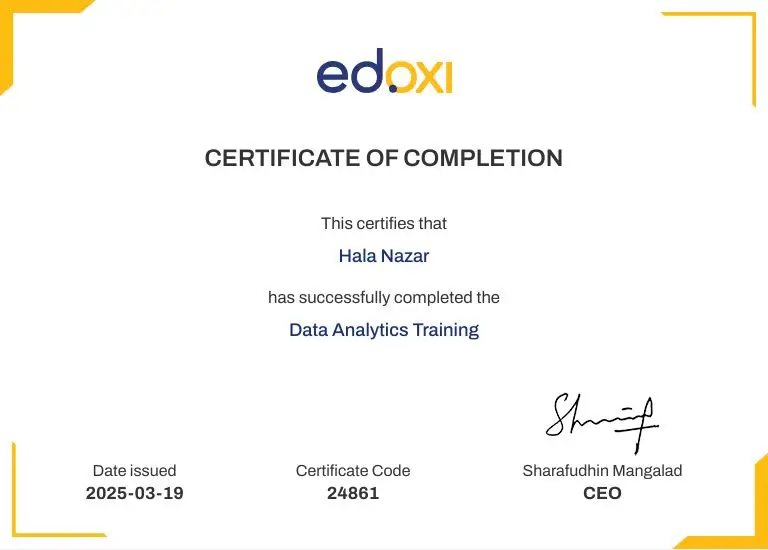
Yes. Upon successful completion, Edoxi provides a recognised Graphic Design Certification that validates your skills for UK employers and creative agencies.
What software is covered in this Graphic Design Training?

The course includes Adobe Photoshop, Illustrator, InDesign and CorelDRAW. These tools form the foundation of professional Graphic Design Training in London.

How is the training delivered in Edoxi’s Graphic Design Classes?

Training combines instructor-led sessions, practical exercises and project-based learning. Each session focuses on applying concepts to real design scenarios.

Does the course include portfolio development?

Yes. A professional portfolio develops through multiple projects, helping you present your work confidently to employers in London.

What is the duration of the Graphic Design Course in London?

Edoxi’s Graphic Design Course runs for 30 hours, offering a structured and intensive learning experience.

What career roles are available after completing this course?

Career paths include Junior Graphic Designer, Visual Designer, Brand Designer, UI/UX Designer and Creative Lead roles across industries.

What is the average salary for Graphic Design Certified professionals in London?

Graphic Design Certification holders in London typically earn between £22,000 and £45,000 per year at entry to mid-level. Senior roles such as Art Director or Creative Lead command higher salaries based on experience.

Does Edoxi provide corporate Graphic Design Training in London?
Yes. Edoxi Training Limited offers Graphic Design Course corporate training in London tailored for teams, focusing on branding, marketing and digital design needs.
How does this Graphic Design Training stay relevant to the London market?

Course content reflects UK design trends, tools and workflows. Practical projects mirror real agency work, ensuring industry relevance.

What is the Graphic Design Course fee, and how to enrol?
Graphic Design Course fee details vary based on training mode and schedule. Contact us to receive updated pricing and enrolment support.
Are there related courses offered by Edoxi Training Limited?
Yes. Related programmes include UI/UX Design Training, Digital Marketing Courses and Advanced Adobe Creative Suite training, supporting broader creative career growth.