Leave your message to get our quick response
edoxi automated message icon

MS Office Basic to Advanced Course in Riyadh

Professional analyzing business data on computer with virtual charts and graphs overlay
Edoxi’s 40-hour MS Office Basic to Advanced course in Riyadh develops professional office productivity skills. Training covers advanced Excel, Word, PowerPoint, and Outlook with hands-on practice in PivotTables, dashboards, macros, mail merge, SmartArt, & automation tools. Work on sales data analysis, financial planning, automated invoices, and business presentations. Enrol now to learn MS Office & advance your career in administration, IT support, data analysis, & project coordination.
 
Course Duration
40 Hours
Corporate Days
5 Days
Learners Enrolled
50+
Levels
Basic to Advanced
star-rating-icon1
star-rating-icon2
star-rating-icon3
Course Rating
5
star-rating-5
Mode of Delivery
Online
Classroom
Certification by

What Do You Learn from Edoxi's MS Office Basic to Advanced Training

Excel Analytics and Reporting
Develop advanced PivotTables and interactive dashboards to turn raw data into insights. Apply advanced formulas to analyse complex datasets and use Excel automation to accelerate reporting.
Business Document Management
Create professional, standardised Word templates for business use. Streamline communication through mail merge and protect sensitive information with document security features.
Presentation Development
Design visually engaging PowerPoint presentations using SmartArt and advanced layouts. Enhance storytelling with smooth transitions and dynamic slide elements.
Email and Calendar Efficiency
Manage emails efficiently using advanced Outlook filters and rules. Optimise scheduling with effective calendar management and enable seamless team collaboration.
Data Automation Tools
Automate repetitive tasks using Excel macros. Clean, transform, and integrate data with Power Query, and analyse large datasets efficiently using Power Pivot.
Visual Business Intelligence
Build interactive dashboards that bring data to life. Use clear, impactful charts and structured reports to communicate business insights effectively.

About Our MS Office Basic to Advanced Course in Riyadh 

Edoxi’s 40-hour MS Office Basic to Advanced training in Riyadh equips professionals with in-demand data analysis skills using Excel, Word, PowerPoint, and Outlook. This MS Office Basic to Advanced course places strong emphasis on Excel, which accounts for nearly 50% of the course content, enabling learners to master advanced data analysis, reporting, automation, and dashboard creation. The MS Office Basic to Advanced training is delivered through hands-on lab sessions and real-world business projects to ensure practical workplace readiness.

Our curriculum follows advanced Excel analytics, including PivotTables, Power Query, Power Pivot, and macros. Also, we cover professional Word documentation, impactful PowerPoint presentations, and efficient Outlook email and calendar management. Learners work with real business datasets, financial models, automated templates, and interactive dashboards that reflect real-world administrative and analytical tasks.

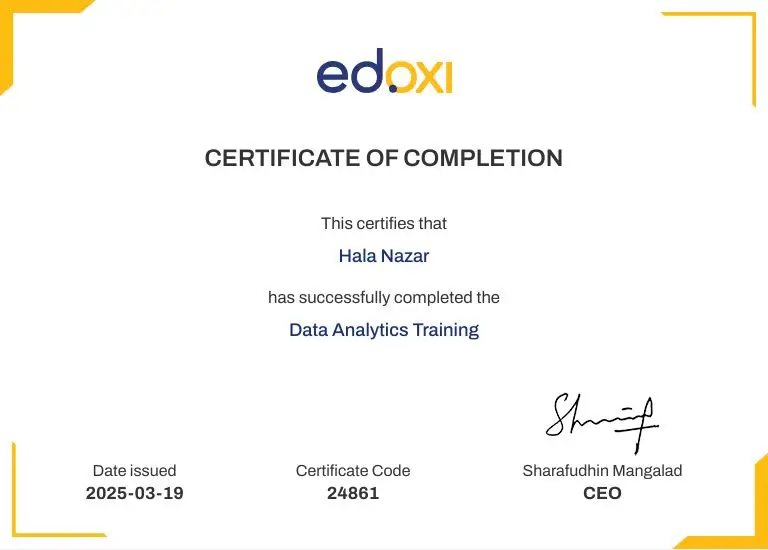
This MS Office Basic to Advanced course is suitable for anyone looking to enhance productivity, strengthen office skills, or progress into administrative and analytical roles. Upon successful completion, you will receive a MS Office Basic to Advanced course completion certificate from Edoxi, validating your advanced proficiency in Microsoft Office applications.

To know more about the MS Office Basic to Advanced course fee (based on training requirements), detailed syllabus, or to schedule personalised classroom, online, or corporate training, contact our team at Edoxi.

Enrol now to enhance your office productivity, strengthen your data skills, and advance your career in today’s digital workplace.

Key Features of Edoxi's MS Office Basic to Advanced Training

Specialised Software Laboratory

Train in a dedicated lab equipped with the latest Microsoft Office suite. Each learner receives individual system access to practice using current software versions.

Real-World Business Projects

Work on practical projects such as analysing real sales data in Excel, creating professional tax invoice templates in Word, and designing business presentations based on real scenarios.

Practice Materials and Datasets

Access comprehensive study guides and real business datasets. Structured practice files help reinforce concepts and build confidence.

One-to-One Training Format

Benefit from personalised instruction with direct trainer support. The learning pace is tailored to your needs, ensuring complete concept clarity.

Flexible Learning Schedule

Choose weekday or weekend batches with training sessions available from morning to evening, making it ideal for working professionals.

Industry-Aligned Content

Develop skills in Excel-based financial planning and administrative workflows aligned with current business and workplace requirements.

Who Can Join Edoxi’s MS Office Basic to Advanced Course in Riyadh?

Students

Ideal for students from diverse academic backgrounds preparing for entry-level roles.

Administrative Professionals

Designed to help administrative staff enhance office productivity and efficiency.

Data Analysis Enthusiasts

Suitable for professionals and beginners aiming to strengthen Excel’s analytical and reporting capabilities.

Office Management Teams

Useful for managers responsible for business documentation and internal communication.

Career Transition Professionals

Supports professionals planning to move into administrative or office-based roles.

Project Coordinators

Helps project coordinators improve project documentation, reporting, and coordination skills.

MS Office Basic to Advanced Course Modules

Module 1: Text Basics
  • Chapter 1: Typing and Aligning Text

    • Lesson 1.1: Typing the text
    • Lesson 1.2: Alignment of text
  • Chapter 2: Editing Text

    • Lesson 2.1: Cut, Copy, Paste, Select All, Clear
    • Lesson 2.2: Find & Replace
Module 2: Text Formatting and Saving File
  • Chapter 3: Managing Files

    • Lesson 3.1: New, Open, Close, Save, Save As
  • Chapter 4: Formatting Text

    • Lesson 4.1: Font Size, Font Style
    • Lesson 4.2: Font Colour, Bold, Italic, and Underline
    • Lesson 4.3: Change the Text Case
    • Lesson 4.4: Line spacing and Paragraph spacing
    • Lesson 4.5: Shading text and paragraph
    • Lesson 4.6: Working with Tabs and Indents
Module 3: Working with Objects
  • Chapter 5: Inserting and Managing Objects

    • Lesson 5.1: Shapes, Clipart, and Pictures
    • Lesson 5.2: Word Art and Smart Art
    • Lesson 5.3: Columns and Orderings
    • Lesson 5.4: Change the Order of Objects
  • Chapter 6: Additional Object Features

    • Lesson 6.1: Page Number, Date & Time
    • Lesson 6.2: Inserting Text boxes
    • Lesson 6.3: Inserting Word Art
    • Lesson 6.4: Inserting Symbols
    • Lesson 6.5: Inserting Charts
Module 4: Headers & Footers
  • Chapter 7: Customising Headers and Footers

    • Lesson 7.1: Inserting Custom Header and Footer
    • Lesson 7.2: Inserting Objects in the Header and Footer
    • Lesson 7.3: Adding a Section Break to a Document
Module 5: Working with Bullets and Numbered Lists
  • Chapter 8: Lists and Numbering

    • Lesson 8.1: Multilevel Numbering and Bulleting
    • Lesson 8.2: Creating Lists
    • Lesson 8.3: Customising List Style
  • Chapter 9: Page Design Elements

    • Lesson 9.1: Page Bordering
    • Lesson 9.2: Page Background
Module 6: Tables
  • Chapter 10: Working with Tables

    • Lesson 10.1: Creating and Formatting Tables
    • Lesson 10.2: Table Styles
    • Lesson 10.3: Alignment, Merge, and Split Options
Module 7: Styles and Content
  • Chapter 11: Using and Modifying Styles

    • Lesson 11.1: Using Built-in Styles
    • Lesson 11.2: Modifying and Creating Styles
    • Lesson 11.3: Creating a List Style
  • Chapter 12: Internal References

    • Lesson 12.1: Adding Internal References
    • Lesson 12.2: Table of Contents and References
    • Lesson 12.3: Adding a Footnote
    • Lesson 12.4: Adding an Endnote
Module 8: Merging Documents
  • Chapter 13: Mail Merge Basics

    • Lesson 13.1: Writing and Inserting Fields
    • Lesson 13.2: Merging with Outlook Contacts
    • Lesson 13.3: Previewing Results
    • Lesson 13.4: Merging to Envelopes
    • Lesson 13.5: Merging to Labels
  • Chapter 14: Advanced Merge Settings

    • Lesson 14.1: Setting Rules for Merges
    • Lesson 14.2: Finish & Merge Options
Module 9: Sharing and Maintaining Documents
  • Chapter 15: Document Management

    • Lesson 15.1: Changing Word Options
    • Lesson 15.2: Changing Proofing Tools
    • Lesson 15.3: Managing Templates
    • Lesson 15.4: Restricting Document Access
    • Lesson 15.5: Using Protected View
  • Chapter 16: Understanding Building Blocks

    • Lesson 16.1: Working with Templates
    • Lesson 16.2: Managing Templates
Module 10: Proofing the Document
  • Chapter 17: Proofing and Auto-Correction

    • Lesson 17.1: Check Spelling as You Type
    • Lesson 17.2: Mark Grammar Errors as You Type
    • Lesson 17.3: Setting Auto Correct Options
Module 11: Printing
  • Chapter 18: Printing Documents

    • Lesson 18.1: Page Setup and Setting Margins
    • Lesson 18.2: Print Preview and Printing
Module 12: Introduction to Excel
  • Chapter 19: Understanding Excel

    • Lesson 19.1: Introduction to Excel Interface
    • Lesson 19.2: Understanding Rows, Columns, and Naming Cells
    • Lesson 19.3: Working with Workbooks and Sheets
Module 13: Formatting Excel Workbook
  • Chapter 20: Basic File Operations

    • Lesson 20.1: New, Open, Close, Save, Save As
  • Chapter 21: Formatting Text and Cells

    • Lesson 21.1: Font Size, Font Style, and Colour
    • Lesson 21.2: Bold, Italic, and Underline
    • Lesson 21.3: Wrap Text, Merge and Centre
    • Lesson 21.4: Currency, Accounting, and Other Formats
  • Chapter 22: Modifying Workbook Layout

    • Lesson 22.1: Modifying Columns, Rows, and Cells
Module 14: Perform Calculations with Functions
  • Chapter 23: Basic and Advanced Functions

    • Lesson 23.1: Creating Simple Formulas
    • Lesson 23.2: Setting Up Formulas
    • Lesson 23.3: Date and Time Functions
    • Lesson 23.4: Financial Functions
    • Lesson 23.5: Logical, Lookup, and Reference Functions
    • Lesson 23.6: Mathematical, Statistical, and Text Functions
Module 15: Sorting and Filtering Data
  • Chapter 24: Sorting and Filtering

    • Lesson 24.1: Sort and Filter Data
    • Lesson 24.2: Using Number and Text Filters
    • Lesson 24.3: Custom Filtering
    • Lesson 24.4: Removing Filters
  • Chapter 25: Conditional Formatting

    • Lesson 25.1: Applying Conditional Formatting
Module 16: Creating Charts
  • Chapter 26: Visualising Data with Charts

    • Lesson 26.1: Inserting Columns and Pie Charts
    • Lesson 26.2: Using Chart Tools
    • Lesson 26.3: Design, Format, and Layout Options
    • Lesson 26.4: Adding Titles and Changing Layouts
    • Lesson 26.5: Editing Chart Data Range and Series
Module 17: Analysing Data with PivotTables
  • Chapter 27: PivotTables and Pivot Charts

    • Lesson 27.1: Creating and Using PivotTables
    • Lesson 27.2: Using PivotCharts
    • Lesson 27.3: Inserting Slicers
    • Lesson 27.4: Creating Calculated Fields
Module 18: Protecting and Sharing Workbook
  • Chapter 28: Security and Collaboration

    • Lesson 28.1: Protecting a Workbook with a Password
    • Lesson 28.2: Allowing Users to Edit Ranges
    • Lesson 28.3: Tracking Changes and Comments
Module 19: Using Macros
  • Chapter 29: Automating Tasks with Macros

    • Lesson 29.1: Creating and Recording Macros
    • Lesson 29.2: Assigning Macros to Worksheets
    • Lesson 29.3: Saving a Macro-Enabled Workbook
Module 20: Proofing and Printing
  • Chapter 30: Document Proofing and Printing

    • Lesson 30.1: Page Setup and Print Area
    • Lesson 30.2: Inserting Custom Headers and Footers
    • Lesson 30.3: Print Preview and Printing
    • Lesson 30.4: Enabling Background Error Checking
    • Lesson 30.5: Setting AutoCorrect Options
Module 21: Setting Up PowerPoint Environment
  • Chapter 31: Basic PowerPoint Operations

    • Lesson 31.1: New, Open, Close, Save, Save As
    • Lesson 31.2: Typing and Aligning Text
  • Chapter 32: Formatting Text and Slides

    • Lesson 32.1: Font Size, Font Style, and Colour
    • Lesson 32.2: Bold, Italic, and Underline
    • Lesson 32.3: Cut, Copy, Paste, Select All, Clear Text
    • Lesson 32.4: Find & Replace
    • Lesson 32.5: Working with Tabs and Indents
    • Lesson 32.6: Formatting Slide Background
    • Lesson 32.7: Using Slide Views
Module 22: Creating Slides and Applying Themes
  • Chapter 33: Slide Creation and Layout

    • Lesson 33.1: Inserting a New Slide
    • Lesson 33.2: Changing the Layout of Slides
    • Lesson 33.3: Duplicating and Copying Slides
  • Chapter 34: Applying Themes

    • Lesson 34.1: Applying Themes to Slides
    • Lesson 34.2: Changing Theme Colours
    • Lesson 34.3: Slide Background Customisation
Module 23: Working with Bullets and Numbering
  • Chapter 35: Lists and Text Formatting

    • Lesson 35.1: Multilevel Numbering and Bulleting
    • Lesson 35.2: Creating and Customising Lists
    • Lesson 35.3: Page Bordering and Backgrounds
    • Lesson 35.4: Aligning Text and Text Directions
Module 24: Working with Objects
  • Chapter 36: Inserting and Managing Objects

    • Lesson 36.1: Shapes, Clipart, Pictures, Word Art, SmartArt
    • Lesson 36.2: Changing the Order of Objects
  • Chapter 37: Additional Object Features

    • Lesson 37.1: Inserting Slide Headers and Footers
    • Lesson 37.2: Inserting Text Boxes
    • Lesson 37.3: Using Quick Styles with Shapes
    • Lesson 37.4: Inserting Word Art, Symbols, and Charts
Module 25: Hyperlinks and Action Buttons
  • Chapter 38: Adding Interactive Elements

    • Lesson 38.1: Inserting Hyperlinks and Action Buttons
    • Lesson 38.2: Editing Hyperlinks and Action Buttons
    • Lesson 38.3: Using Word Art and Shapes for Interactivity
Module 26: Working with Movies and Sounds
  • Chapter 39: Multimedia Integration

    • Lesson 39.1: Inserting Movies from a Computer File
    • Lesson 39.2: Inserting Audio Files
  • Chapter 40: Multimedia Formatting and Playback

    • Lesson 40.1: Audio and Video Playback Options
    • Lesson 40.2: Adjusting Video and Audio Settings
    • Lesson 40.3: Reshaping and Bordering Videos
Module 27: Using SmartArt and Tables
  • Chapter 41: Working with Tables

    • Lesson 41.1: Creating and Formatting Tables
    • Lesson 41.2: Table Styles and Alignment
    • Lesson 41.3: Merging and Splitting Cells
  • Chapter 42: SmartArt Integration

    • Lesson 42.1: Converting Text to SmartArt
Module 28: Animation and Slide Transitions
  • Chapter 43: Adding Animations

    • Lesson 43.1: Default and Custom Animations
    • Lesson 43.2: Modifying and Reordering Animations
  • Chapter 44: Slide Transitions

    • Lesson 44.1: Applying and Modifying Transitions
    • Lesson 44.2: Advancing to the Next Slide Automatically
Module 29: Using Slide Master
  • Chapter 45: Customising the Slide Master

    • Lesson 45.1: Using the Slide Master
    • Lesson 45.2: Inserting and Formatting Layouts
    • Lesson 45.3: Creating Custom Layouts and Placeholders
Module 30: Slide Show Options
  • Chapter 46: Presenting a Slide Show

    • Lesson 46.1: Starting and Running a Slide Show
    • Lesson 46.2: Starting from the Current Slide
    • Lesson 46.3: Rehearsing Slide Timings
    • Lesson 46.4: Creating a Custom Slide Show
Module 31: Proofing and Printing
  • Chapter 47: Finalising Presentations

    • Lesson 47.1: Checking Spelling as You Type
    • Lesson 47.2: Setting AutoCorrect Options
  • Chapter 48: Saving and Printing

    • Lesson 48.1: Save as Video, JPEG, or PowerPoint Show
    • Lesson 48.2: Print Preview and Printing
Module 32: Email Management
  • Chapter 49: Working with Emails

    • Lesson 49.1: Email Basics – Composing and Sending
    • Lesson 49.2: Fonts, Hyperlinks, and Spell Check
    • Lesson 49.3: Recall and Replace Sent Messages
    • Lesson 49.4: Send Automatic Replies (Out of Office)
    • Lesson 49.5: Sending and Opening Attachments
    • Lesson 49.6: Understanding BCC and CC
Module 33: Organising Emails and Contacts
  • Chapter 50: Managing Emails

    • Lesson 50.1: Grouping and Viewing Emails
    • Lesson 50.2: Creating and Managing Search Folders
    • Lesson 50.3: Using Rules to Manage Emails
    • Lesson 50.4: Archiving or Backing Up Your Mailbox
    • Lesson 50.5: Controlling Spam and Junk Mail
  • Chapter 51: Contacts and Address Book

    • Lesson 51.1: Adding and Using Contacts
    • Lesson 51.2: Importing and Exporting vCards
    • Lesson 51.3: Creating Contact Groups (Distribution Lists)
Module 34: Calendar and Scheduling
  • Chapter 52: Calendar Basics

    • Lesson 52.1: Using and Customizing the Calendar
    • Lesson 52.2: Adding Holidays to the Calendar
    • Lesson 52.3: Scheduling and Managing Meetings
  • Chapter 53: Advanced Calendar Features

    • Lesson 53.1: Use Instant Search to Find Calendar Items
    • Lesson 53.2: Taking Calendars to the Next Level
    • Lesson 53.3: Sharing or Publishing Office 365 Calendars
Module 35: Advanced Email Features
  • Chapter 54: Enhancing Email Usage

    • Lesson 54.1: Tracking Emails with Read Receipts
    • Lesson 54.2: Using Voting Buttons for Polls
    • Lesson 54.3: Creating and Using Personal Folders (Outlook Data Files)
  • Chapter 55: Templates and Automation

    • Lesson 55.1: Using Templates and Stationery
    • Lesson 55.2: Automating Tasks in Outlook
    • Lesson 55.3: Sending or Deleting Emails Stuck in the Outbox
Module 36: Security and Privacy
  • Chapter 56: Protecting Outlook Data

    • Lesson 56.1: Password Protecting Your Mailbox
    • Lesson 56.2: Using Protected View
    • Lesson 56.3: Restricting Document Access
    • Lesson 56.4: Managing Permissions for Emails and Folders

Download MS Office Basic to Advanced Course Brochure

Real-World Projects in Our MS Office Basic to Advanced Course in Riyadh

Our MS Office Basic to Advanced Course in Riyadh features expert-led training with hands-on projects in Excel analysis, financial planning, professional Word documents, impactful PowerPoint presentations, and efficient Outlook management. The following are the projects

Projects

  • Sales Data Analysis Project

    Analyse real sales data to identify business trends and create comprehensive reports. This project develops your analytical and reporting capabilities.

  • Financial Planning Project

    Create budgets and financial forecasts using advanced Excel features. This project enhances your financial modelling skills.

  • Educational Data Analysis

    Work with academic datasets to create performance reports. This project strengthens your data visualisation abilities.

  • Professional Resume Creation

    Design modern CV formats using advanced formatting features. This project improves your document styling skills.

  • Tax Invoice Template Development

    Build automated invoice templates for business use. This project enhances your efficiency with Word automation.

  • Artificial Intelligence Presentation

    Create engaging slides about AI technology trends. This project develops your visual storytelling abilities.

  • Computer Literacy Visualisation

    Develop educational slides about technology concepts. This project improves your information design capabilities.

  • Meeting Management System

    Configure efficient meeting scheduling workflows. This project enhances your calendar management skills.

  • Group Contact Organisation

    Create and manage group contact systems. This project develops your communication management abilities.

MS Office Basic to Advanced Course Outcome and Career Opportunities in Riyadh

By completing our MS Office Basic to Advanced course, participants master Excel, Word, PowerPoint, and Outlook to handle real-world business tasks efficiently. The key outcomes include

Course Outcome Image
Gain expertise in PivotTables, Power Query, Power Pivot, dashboards, and macros to perform professional-level Excel data analysis and reporting.
Learn to design structured Word templates, automated invoices, resumes, and secure documents for real-world administrative use.
Build visually engaging PowerPoint presentations using SmartArt, animations, slide masters, and storytelling techniques.
Manage emails, meetings, contacts, and schedules efficiently using advanced Outlook features and automation tools.
Increase efficiency by automating workflows across Excel and Outlook, reducing manual effort and improving accuracy.
Acquire practical skills aligned with modern business requirements to pursue administrative, data, and office management roles.

Job Roles After Completing the MS Office Basic to Advanced Training in Riyadh

  • Front Office Executive
  • Data Entry Specialist
  • Administrative Assistant
  • Data Analyst
  • Office Administrator
  • Executive Assistant

Companies Hiring MS Office Basic to Advanced Skilled Professionals in Riyadh

  • Massar Business Solutions
  • Supertech Group
  • Mrkas Company
  • Müller’s Solutions
  • Dar Al Riyadh
  • JASARA Program Management Company
  • Agility
  • Thermo Fisher Scientific
  • National Industrialization Company (TASNEE)
  • Alsubhi Medical Center

MS Office Basic to Advanced Training Options

Classroom Training

  • 40 hours of MS Office Basic to Advanced Training

  • Receive training in our professional computer lab

  • Work with dedicated systems and the latest Office suite

  • Get individual attention from an expert trainer

  • Practice with real business presentation tasks

Live Online Training

  • 40 hours of online MS Office Basic to Advanced Training

  • Connect to interactive virtual training sessions

  • Learn with personal guidance from a trainer

  • Choose flexible timing for your sessions

  • Customised modules

Corporate Training

  • Get customised training for your business teams

  • Training delivered at a selected hotel, client premises, or Edoxi

  • Fly-Me-a-Trainer Option

  • Receive content focused on company needs

Do You Want a Customised Training for MS Office Basic to Advanced?

Get expert assistance in getting your MS Office Basic to Advanced Course customised!

How to Get an MS Office Basic to Advanced Certification in Riyadh?

Here’s a four-step guide to becoming a certified MS Office Basic to Advanced professional.
How to Get MS Office Basic to Advanced Certified?

Join Edoxi’s MS Office Basic to Advanced Course

Why Choose Edoxi for an MS Office Basic to Advanced Course in Riyadh?

Among the many options available, Edoxi is one of the best MS Office Basic to Advanced training Institutes in Riyadh. Here’s why Edoxi’s MS Office Basic to Advanced training is the perfect choice for your needs

Personalised Training

Benefit from our exclusive personalised training, ensuring dedicated attention and learning tailored to your professional goals.

Hands-On Practical Lab Sessions

Work in our state-of-the-art computer lab with the latest MS Office suite, applying skills to real-world business scenarios.

Flexible and Customised Schedule

Choose training timings that fit your busy schedule, with fully customizable sessions to match your availability.

Course Completion Certification

Earn a MS Office Basic to Advanced course completion certificate from Edoxi, validating your advanced MS Office skills.

Learn from Industry Experts

Train under experienced MS Office instructors who provide practical insights and guidance for real-world applications.

students-image

Edoxi is Recommended by 95% of our Students

Meet Our Mentor

Our mentors are leaders and experts in their fields. They can challenge and guide you on your road to success!

mentor-image

Asim Nath Dubey

Asim Nath is an Accounting and Microsoft Office trainer at Edoxi Training Institute. He has over 13 years of training experience and has successfully trained more than 3000 professionals in Accounting and Microsoft Office applications. Asim’s specialisations include Financial Accounting, Tally, Zoho and Quickbooks. His background in financial accounting adds valuable insights to business presentation training.

Asim is an expert in MS Office, including PowerPoint, Excel, and Power BI, positioning him as a well-rounded specialist in the Microsoft Suite. Asim employs a practical, business-focused teaching methodology. His one-to-one training approach ensures each student receives personalized attention. He emphasizes real-world applications, helping professionals create impactful business presentations.

Locations Where Edoxi Offers MS Office Basic to Advanced Course

Here is the list of other major locations where Edoxi offers MS Office Basic to Advanced Course

FAQ

What is the duration of the Basic to Advanced course in Riyadh?
The MS Office Basic to Advanced Course duration is 40 hours. We offer flexible timing options by providing classes on both weekdays and weekends to accommodate your schedule.
What level of MS Office knowledge do I need to join this MS Office Basic to Advanced course?
Basic computer operation knowledge is sufficient to begin. If you seek advanced training, a fundamental understanding of MS Office applications helps, but our course supports learners at all levels.
How much emphasis is placed on Excel in this MS Office Basic to Advanced course in Riyadh?
Excel comprises 50% of the course content. This focus ensures you master advanced data analysis, financial reporting, and dashboard creation capabilities.
Can I analyse data at an expert level after this MS Office Basic to Advanced course?
Yes. You will learn advanced Excel functions, PivotTables, and dashboard creation techniques that enable professional-level data analysis.
Will I learn to create dashboard reports?
Yes. The course covers comprehensive dashboard creation in Excel, including data visualisation, interactive elements, and automated reporting techniques.
How does this MS Office Basic to Advanced course help my career in Riyadh?
The MS Office Basic to Advanced course develops essential skills for administrative and analytical roles, enhancing your capabilities in data analysis, professional documentation, and business communication.
Who can join the MS Office Basic to Advanced course in Riyadh?
Students, administrative professionals, data analysts, office managers, project coordinators, and professionals seeking career transitions can join.
What skills will I gain from this MS Office Basic to Advanced course?
Master advanced Word, Excel, PowerPoint, Outlook, and automation, enhancing productivity, reporting, presentations, and email management.
How does this MS Office Basic to Advanced course improve job prospects?
Completing the course prepares participants for roles in administration, IT support, data analysis, and project coordination.
What are the potential job roles after completing the MS Office Basic to Advanced course in Riyadh?
Typical roles include Administrative Assistant, IT Specialist, Data Analyst, Office Administrator, and Project Coordinator.
What is the expected salary range after completing the MS Office Basic to Advanced course?
Skilled professionals can earn from SAR 40,000 to over SAR 100,000 annually, depending on experience and sector.
Do I need prior MS Office knowledge to join the MS Office Basic to Advanced?
Basic computer skills are sufficient. Previous MS Office experience helps but is not mandatory, as the course covers fundamentals to advanced topics.
How will the course benefit my work efficiency?
Advanced skills in Excel analytics, Word templates, PowerPoint presentations, Outlook management, and automation significantly improve productivity and workflow efficiency.