Leave your message to get our quick response
edoxi automated message icon

Interior Design Course in London

Professional interior designer presenting a blueprint plan in a modern office workspace, explaining design details.
Edoxi’s 80-hour Interior Design Course in London builds your expertise in space planning, technical drafting, and high-quality 3D visualisation. Gain hands-on experience using leading tools such as AutoCAD, 3ds Max, V-Ray, and Photoshop while working on real-world residential and commercial design projects. The course follows current UK industry standards and help learners develop a strong professional portfolio. Enrol now and gain the confidence to start or advance your interior design career in the UK.
Course Duration
80 Hours
Corporate Days
10 Days
Learners Enrolled
100+
Modules
33
star-rating-icon1
star-rating-icon2
star-rating-icon3
Course Rating
4.9
star-rating-4.9
Mode of Delivery
Online
Classroom
Certification by

What Do You Learn from Edoxi's Interior Design Training

AutoCAD Technical Drawing Skills
Learn to create floor plans and to make elevations and sections.
Space Planning Fundamentals
Understand furniture layout principles, traffic flow patterns, and functional zones for different needs.
3D Modelling, Furniture Design, and Visualisation
Master 3ds Max for furniture and decor modelling. Create complete interior visualisations and learn photographic composition for portfolio-ready renders.
Design Anthropometry
Study human-centred design principles and ergonomic space planning, and apply proportional scaling in your layouts.
VRAY Rendering Engine
Master realistic material shaders and advanced lighting styles to create professional texture mapping for surfaces.
Digital Post-Processing
Learn rendering touch-ups in Photoshop and material texture editing to enhance your final design presentations.

About Our Interior Design Course in London

Edoxi offers an 80-hour Interior Design Course in London designed to build strong technical and creative expertise in designing modern interior spaces. This training prepares you to work on residential and commercial projects that reflect contemporary UK design trends and client expectations. The programme is ideal for aspiring interior designers, decorators, and creative professionals looking to gain practical, job-ready skills. Corporate Interior Design Training is also available for organisations aiming to upskill their teams.

Our course covers essential concepts such as human-centred design, ergonomic planning, proportional scaling, and advanced lighting and furniture layout techniques. The training focuses on hands-on learning using industry-standard tools, including AutoCAD, 3DS Max, V-Ray, and Photoshop. Participants gain practical experience designing modern office interiors, functional residential layouts, and sustainable kitchen and bathroom spaces aligned with current design practices.

By the end of this Interior Design Training in London, learners will be able to create professional interior design concepts, detailed drawings, and high-quality presentations that meet real-world industry standards.

To learn about the Interior Design course fees, or schedule a online/offline corporate training, contact our team at Edoxi us.

Key Features of Edoxi's Interior Design Training

Comprehensive Material Library

Gain access to a wide collection of design materials to support creative and technical work.

Recorded Sessions

Revisit learning anytime with access to recorded live sessions for better understanding and revision.

Residential Project Work

Develop layouts and technical plans for residential spaces through guided project work.

Commercial Design Projects

Create elevations and sections for commercial environments with a focus on real-world applications.

Who Can Join Our Interior Design Course in London?

Architecture and Civil Engineers

Architecture and Civil Engineering professionals who want to expand their knowledge and skills in interior design.

12th Grade Graduates

Students who have completed high school education and are eager to explore the world of interior design.

Graphic Designers

Graphic designers looking to diversify their creative skills and venture into spatial and interior design.

Career Switchers

Individuals from different fields who are looking to start a fresh and rewarding career in interior design.

Interior Design Course Modules


AutoCAD 2D

Module I: Introduction to AutoCAD 2D
  • Chapter 1: Getting Started with AutoCAD

    • Lesson 1.1 Introduction to AutoCAD and Autodesk Products
    • Lesson 1.2 Starting with Recent File Window
    • Lesson 1.3 Overview of GUI (Graphical User Interface) Window
    • Lesson 1.4 Working with and without Templates
    • Lesson 1.5 General Tools: Zoom, Pan, Selections, Open, Save, Save As
    • Lesson 1.6 Understanding Options and Properties
Module II: Basic Drawing Tools
  • Chapter 2: Fundamental Tools and Settings

    • Lesson 2.1 Setting Units and Limits
    • Lesson 2.2 Creating Lines and Understanding Methods of Creation
    • Lesson 2.3 Working with Polylines
    • Lesson 2.4 Tools: Erase, Copy, Move, Explode
    • Lesson 2.5 Draft Settings and Their Applications
  • Chapter 3: Drawing Basic Shapes

    • Lesson 3.1 Creating Circles and Polygons
    • Lesson 3.2 Using Undo & Redo Functions
    • Lesson 3.3 Editing with Trim and Extend
    • Lesson 3.4 Transformations: Mirror and Rotate
  • Chapter 4: Advanced Shape Tools

    • Lesson 4.1 Drawing Rectangles and Arcs (11 Methods)
    • Lesson 4.2 Modifying Shapes: Lengthen, Break, Join, Offset
Module III: Advanced Drawing and Editing
  • Chapter 5: Specialized Tools

    • Lesson 5.1 Working with Ellipses
    • Lesson 5.2 Using Stretch and Ray Line Tools
    • Lesson 5.3 Applying Fillet and Chamfer Commands
    • Lesson 5.4 Adding and Editing Text
  • Chapter 6: Additional Line Tools

    • Lesson 6.1 Using Xline and Multiline Styles
    • Lesson 6.2 Creating Splines
    • Lesson 6.3 Managing Line Types, Line Type Scale, Line Weight, and Display
    • Lesson 6.4 Adding Color Fill
  • Chapter 7: Tool Management

    • Lesson 7.1 Using Tool Palette and Design Center
    • Lesson 7.2 Scaling Objects
    • Lesson 7.3 Creating and Managing Arrays
Module IV: Dimensions, Layers, and Blocks
  • Chapter 8: Working with Dimensions

    • Lesson 8.1 Understanding and Applying Dimensions
  • Chapter 9: Enhancing Drawings

    • Lesson 9.1 Dividing and Measuring Objects
    • Lesson 9.2 Adjusting Point Styles
    • Lesson 9.3 Applying Gradient and Hatch Patterns
  • Chapter 10: Isometric Drawings

    • Lesson 10.1 Creating Isometric Drawings, ISO Text, ISO Circles, and ISO Dimensions
  • Chapter 11: Layer Management

    • Lesson 11.1 Managing Layers and Matching Properties
  • Chapter 12: Block Operations

    • Lesson 12.1 Creating and Inserting Blocks
    • Lesson 12.2 Writing and Editing Blocks
    • Lesson 12.3 Using Purge Unused Tools
    • Lesson 12.4 Hands-On Exercise
Module V: Leaders, Boundaries, and References
  • Chapter 13: Leaders and Annotations

    • Lesson 13.1 Creating Leaders and Multi Leaders (MLD)
    • Lesson 13.2 Customizing Multi Leader Styles (MLS)
    • Lesson 13.3 Aligning Leaders and Collecting Multi Leaders
    • Lesson 13.4 Adding and Removing Leaders
    • Lesson 13.5 Using Quick Calculator (QC)
    • Lesson 13.6 Hands-On Exercise
  • Chapter 14: Boundaries and Regions

    • Lesson 14.1 Creating Boundaries and Regions
    • Lesson 14.2 Calculating Areas and Using the Calculator
    • Lesson 14.3 Title Block Creation
    • Lesson 14.4 Working with Tables and Editing Attributes
  • Chapter 15: External References and Selection Methods

    • Lesson 15.1 Managing External References
    • Lesson 15.2 Using Overkill and Object Selection Methods
    • Lesson 15.3 Tools: QSelect, Filter, and BCount
Module VI: Layout and Printing
  • Chapter 16: Finalizing and Printing

    • Lesson 16.1 Managing Layout and Page Setup Manager
    • Lesson 16.2 Adding Viewports and Views
    • Lesson 16.3 Printing and Exporting Drawings

3DS Max

Module I: Introduction to Autodesk 3DS Max Design
  • Chapter 1: Overview

    • Lesson 1.1 Overview of Autodesk 3DS Max Design
    • Lesson 1.2 Understanding the Visualization Workflow
  • Chapter 2: The Autodesk 3DS Max Design Interface

    • Lesson 2.1 Interface Overview
    • Lesson 2.2 Visualization Workflow
Module II: Starting a Visualization Project
  • Chapter 3: Autodesk 3DS Max Design Configuration

    • Lesson 3.1 Configuring Video Modes
    • Lesson 3.2 Setting Preferences
    • Lesson 3.3 Configuring Paths
    • Lesson 3.4 Units Setup
    • Lesson 3.5 Customizing the User Interface
  • Chapter 4: Assembling Project Files

    • Lesson 4.1 Data Linking and Importing
    • Lesson 4.2 Understanding DWG Link and Import Options
    • Lesson 4.3 Managing Layer and Object Properties
  • Chapter 5: 3D Modeling from 2D Objects

    • Lesson 5.1 Drawing 2D Lines
    • Lesson 5.2 Using the Lathe Modifier
    • Lesson 5.3 Performing 2D Booleans
    • Lesson 5.4 Creating Terrain Objects
    • Lesson 5.5 Applying the Extrude Modifier
    • Lesson 5.6 Using Boolean Operations
    • Lesson 5.7 Utilizing the Sweep Modifier (Optional)
    • Lesson 5.8 Creating Loft Objects (Optional)
    • Lesson 5.9 Using Snaps for Precision
Module III: Materials
  • Chapter 6: Introduction to Materials

    • Lesson 6.1 How Materials Work
    • Lesson 6.2 Understanding Maps and Materials
    • Lesson 6.3 Working with Materials and Material Libraries
    • Lesson 6.4 Managing Materials
  • Chapter 7: Material Types & Parameters

    • Lesson 7.1 Standard Materials
    • Lesson 7.2 Architectural Materials (Optional)
    • Lesson 7.3 Multi/Sub-Object Materials
    • Lesson 7.4 Opacity, Bump, and Reflection Mapping
    • Lesson 7.5 Mental Ray Shaders and Materials
    • Lesson 7.6 Arch & Design Materials
    • Lesson 7.7 ProMaterials
    • Lesson 7.8 Exploring Other Material Types
    • Lesson 7.9 Creating a Decal Texture
  • Chapter 8: Mapping Coordinates & Scale

    • Lesson 8.1 Mapping Coordinates
    • Lesson 8.2 Understanding Mapping Scale
    • Lesson 8.3 Using Spline Mapping
Module IV: Introduction to 3DS Max Design Lighting
  • Chapter 9: Autodesk 3DS Max Design Lighting Overview

    • Lesson 9.1 Local vs. Global Illumination
    • Lesson 9.2 Choosing a Lighting Strategy
  • Chapter 10: Standard Lighting

    • Lesson 10.1 Modelling with Primitives
    • Lesson 10.2 Applying Transforms
    • Lesson 10.3 Working with Sub-Object Mode
    • Lesson 10.4 Reference Coordinate Systems and Transform Centers
    • Lesson 10.5 Cloning and Grouping
    • Lesson 10.6 Box Modelling (Optional)
    • Lesson 10.7 Viewing Statistics in the Viewport
Module V: Lighting & Rendering Using Mental Ray
  • Chapter 11: Scene Preparation for Mental Ray

    • Lesson 11.1 Fundamentals of Mental Ray
  • Chapter 12: Rendering with Mental Ray

    • Lesson 12.1 Mental Ray Interior Rendering
    • Lesson 12.2 Controlling Mental Ray Quality
    • Lesson 12.3 Using Mental Ray Proxies
Module VI: Rendering & Animation
  • Chapter 13: Rendering

    • Lesson 13.1 Iterative Rendering
    • Lesson 13.2 Single vs. Double-Sided Rendering
    • Lesson 13.3 Adjusting Camera Parameters
    • Lesson 13.4 Working with Background Images
    • Lesson 13.5 Using the Print Size Wizard
    • Lesson 13.6 Exploring Selected Rendering Options
    • Lesson 13.7 Setting Rendering Presets
  • Chapter 14: Animation

    • Lesson 14.1 Animation Controls
    • Lesson 14.2 Creating Walkthrough Animations
    • Lesson 14.3 Generating Animation Output

Space Planning

Module I: Introduction to Space Planning in Interior Design
  • Chapter 1: Understanding Interior Spaces

    • Lesson 1.1 Mapping the Space
    • Lesson 1.2 Understanding Space
    • Lesson 1.3 Marking All Existing Services
    • Lesson 1.4 Gathering the Right Information to Reimagine Space
Module II: Design Fundamentals
  • Chapter 2: Design Theory

    • Lesson 2.1 Elements of Design
    • Lesson 2.2 Principles of Design
    • Lesson 2.3 Basics of Color Theory
  • Chapter 3: Human Behavior in Interior Spaces

    • Lesson 3.1 Ergonomics in Space Design
    • Lesson 3.2 Required Clearances for Comfortable Use
    • Lesson 3.3 Accessibility Considerations
Module III: Planning Tools and Techniques
  • Chapter 4: Bubble Diagrams and Blocking Plans

    • Lesson 4.1 Creating Bubble Diagrams
    • Lesson 4.2 Defining Movement within Spaces
    • Lesson 4.3 Developing a Blocking Plan
    • Lesson 4.4 Applying Barrier-Free Design Standards
  • Chapter 5: Basic Furniture Planning

    • Lesson 5.1 Planning Furniture Placement
    • Lesson 5.2 Incorporating Multiuse Furniture
    • Lesson 5.3 Designing with Fixed Furniture
Module IV: Interior Services and Aesthetics
  • Chapter 6: Residential Interior Services

    • Lesson 6.1 Introduction to MEP and HVAC Systems
    • Lesson 6.2 Lighting Design Essentials
  • Chapter 7: Preparing Mood Boards

    • Lesson 7.1 Deciding a Color Scheme
    • Lesson 7.2 Specifying Materials
    • Lesson 7.3 Choosing Upholstery
    • Lesson 7.4 Selecting Fixtures and Sanitary Fittings
Module V: Technology in Space Planning
  • Chapter 8: Computer Technologies for Design

    • Lesson 8.1 Using CAD Tools for Design
    • Lesson 8.2 Creating Presentation 2D Drawings with CAD Tools
    • Lesson 8.3 Developing Detailed Working Drawings with CAD Tools

V-Ray

Module I: Introduction to V-Ray
  • Chapter 1: Understanding the V-Ray Workflow

    • Lesson 1.1 Linear and Physical Workflow
    • Lesson 1.2 Lighting Workflow
    • Lesson 1.3 Using and Adjusting the V-Ray Physical Camera
    • Lesson 1.4 In-depth Global Illumination (GI)
    • Lesson 1.5 Image Sampling Basics
    • Lesson 1.6 Advanced V-Ray Materials
    • Lesson 1.7 Render Elements
    • Lesson 1.8 Network Rendering Overview
Module II: Exterior and Interior Rendering Techniques
  • Chapter 2: Exterior Night View

    • Lesson 2.1 Configuring V-Ray Settings for Exterior Scenes
    • Lesson 2.2 Using V-Ray Materials (Affect Shadow)
    • Lesson 2.3 Exploring the GI Tab for Exterior Scenes
    • Lesson 2.4 Rendering Exterior Night Views
  • Chapter 3: Interior Night View

    • Lesson 3.1 V-Ray Settings for Interior Night Scenes
    • Lesson 3.2 Creating a Night Environment
    • Lesson 3.3 Adding and Configuring V-Ray Lights
    • Lesson 3.4 Using V-Ray Materials (Affect Shadow) for Interiors
    • Lesson 3.5 Adjusting the GI Tab for Interior Scenes
    • Lesson 3.6 Rendering Interior Night Views
Module III: Advanced Lighting Techniques
  • Chapter 4: Comprehensive Lighting Workflow

    • Lesson 4.1 Proper Lighting Workflow
    • Lesson 4.2 Image-Based Lighting (HDR)
    • Lesson 4.3 Setting Up the Daylight System
    • Lesson 4.4 Exploring Light Typologies and Uses
    • Lesson 4.5 Physically Accurate Lighting Techniques
  • Chapter 5: V-Ray Light Types

    • Lesson 5.1 The Dome Light
    • Lesson 5.2 The Mesh Light
    • Lesson 5.3 The Disc Light
    • Lesson 5.4 The VRay IES Light
    • Lesson 5.5 The VRay Ambient Light
Module IV: Camera and Global Illumination Techniques
  • Chapter 6: V-Ray Physical Camera and VFB

    • Lesson 6.1 Basics of Physical Cameras
    • Lesson 6.2 Exposure vs. Shutter vs. ISO
    • Lesson 6.3 Controls: Depth of Field (DOF) and Motion Blur
    • Lesson 6.4 V-Ray Frame Buffer (VFB) for Post-Processing
  • Chapter 7: In-depth Global Illumination

    • Lesson 7.1 Demystifying GI Engines
    • Lesson 7.2 Bounces: Primary and Secondary
    • Lesson 7.3 Brute Force GI
    • Lesson 7.4 Irradiance Map and Light Cache
    • Lesson 7.5 Best Practices for GI
Module V: Image Sampling and Material Techniques
  • Chapter 8: Image Sampling

    • Lesson 8.1 Anti-Aliasing Theory
    • Lesson 8.2 Sampling Methods: Fixed, Adaptive DMC, Adaptive Subdivision
    • Lesson 8.3 Managing Color and Noise Thresholds
    • Lesson 8.4 Using Filters for Optimization
  • Chapter 9: Advanced V-Ray Materials

    • Lesson 9.1 Understanding Materials Physics
    • Lesson 9.2 Material Creation Workflow
    • Lesson 9.3 Material Optimization Techniques
    • Lesson 9.4 Using Dirt Materials
    • Lesson 9.5 Creating Complex Materials
    • Lesson 9.6 Comparing Bump Mapping, Normal Mapping, and V-Ray Displacement
    • Lesson 9.7 Advanced V-Ray Shaders and Real-World Materials
Module VI: Rendering Elements and Advanced Techniques
  • Chapter 10: V-Ray Render Elements

    • Lesson 10.1 Using Render Elements in V-Ray
    • Lesson 10.2 Render Elements Math and Compositing
    • Lesson 10.3 Selecting the Best Elements and Light Controls
    • Lesson 10.4 Managing and Saving Render Elements (8/16/32 Bit)
    • Lesson 10.5 Exporting Render Elements to Photoshop
  • Chapter 11: Advanced Rendering Techniques

    • Lesson 11.1 Using VRayProxies for Complex Scenes
    • Lesson 11.2 VRay Scenes and Clipper Tools
    • Lesson 11.3 Rendering with Advanced Techniques
Module VII: Animation and Effects
  • Chapter 12: Animation Techniques

    • Lesson 12.1 Managing Animations in V-Ray
    • Lesson 12.2 Animating Scenes with Static Objects
    • Lesson 12.3 Animating Scenes with Moving Objects
  • Chapter 13: Advanced Optical, Lighting, and Environment Effects

    • Lesson 13.1 Depth of Field (DOF) in Camera and Post-Processing
    • Lesson 13.2 Motion Blur in Camera and Post-Processing
    • Lesson 13.3 Effects: Dispersion, Glare, and Bloom
    • Lesson 13.4 Volume Light and Caustics
    • Lesson 13.5 Creating V-Ray Environment Fog
Module VIII: Rendering Pipeline
  • Chapter 14: Specialized Rendering Techniques

    • Lesson 14.1 Exterior Rendering VXL 201
    • Lesson 14.2 Advanced Exterior Rendering 202
    • Lesson 14.3 Interior Day Rendering 203
    • Lesson 14.4 Interior Night Rendering 204
    • Lesson 14.5 Exterior Day and Night Rendering 211
    • Lesson 14.6 Interior Day and Night Rendering 212
    • Lesson 14.7 Exterior Dynamic Geometry Rendering 213
  • Chapter 15: Rendering Management

    • Lesson 15.1 Network Rendering
    • Lesson 15.2 Distributed Rendering
    • Lesson 15.3 CPU and GPU Rendering with V-RayRT
    • Lesson 15.4 Managing V-Ray Projects Efficiently

PhotoShop

Module I: Introduction to Photoshop
  • Chapter 1: Getting Started with Photoshop

    • Lesson 1.1 Understanding the Photoshop Interface
    • Lesson 1.2 Photoshop Panels and Control Bar
    • Lesson 1.3 Non-Destructive Workflow Overview
    • Lesson 1.4 Introduction to Photoshop Techniques
Module II: Image Repair and Replacement
  • Chapter 2: Photoshop Tools for Image Repair

    • Lesson 2.1 Using the Clone Tool for Image Removal or Replacement
    • Lesson 2.2 Healing Brush for Damage Fixing
    • Lesson 2.3 Red Eye Removal Techniques
    • Lesson 2.4 Content-Aware Fill for Smart Repairs
  • Chapter 3: Advanced Image Adjustments

    • Lesson 3.1 Using Grids, Guides, and Rulers
    • Lesson 3.2 Understanding Print vs. Pixel Workflow
    • Lesson 3.3 Image Resize, Resolution, and Artwork Sizing
    • Lesson 3.4 Rotation and Transformation Tools
    • Lesson 3.5 Working with the Crop Tool
Module III: Working with Layers
  • Chapter 4: Layer Management

    • Lesson 4.1 Understanding Layers in Photoshop
    • Lesson 4.2 Creating, Editing, and Shuffling Layers
    • Lesson 4.3 Merging and Flattening Layers
    • Lesson 4.4 Working with the Layer Palette
    • Lesson 4.5 Using Fill and Adjustment Layers
Module IV: Practical Photoshop Techniques
  • Chapter 5: Photoshop Practicalities

    • Lesson 5.1 Working with Multiple Images
    • Lesson 5.2 Understanding Different Image Modes
    • Lesson 5.3 Using Photoshop Keystrokes
    • Lesson 5.4 Managing Views and Window Arrangements
    • Lesson 5.5 Image Formats and Their Uses
  • Chapter 6: Photoshop Colour Techniques

    • Lesson 6.1 Working with Colour and Colour Modes
    • Lesson 6.2 Exploring Colour Harmony and Replacement Brush
    • Lesson 6.3 Adjusting Hue and Saturation
    • Lesson 6.4 Using Colour Balance and Black & White Mode
Module V: Creative Enhancements and Selections
  • Chapter 7: Filters in Photoshop

    • Lesson 7.1 Exploring the Filter Gallery
    • Lesson 7.2 Using Liquefy and Oil Paint Filters
    • Lesson 7.3 Working with Vanishing Point
  • Chapter 8: Photoshop Brushes

    • Lesson 8.1 Working with Brushes
    • Lesson 8.2 Creating Custom Brushes
    • Lesson 8.3 Using the Brush Tool and Mixer Brush
    • Lesson 8.4 Managing Brush Presets
  • Chapter 9: Selection Techniques

    • Lesson 9.1 Using Lasso, Magnetic Lasso, and Magic Wand Tools
    • Lesson 9.2 Feathering Selections for Soft Edges
    • Lesson 9.3 Expanding and Reducing Selections
    • Lesson 9.4 Modifying and Transforming Selections
    • Lesson 9.5 Using Quick Masks
    • Lesson 9.6 Saving and Loading Selections
Module VI: Automation, Masking, and Advanced Features
  • Chapter 10: Photoshop Automation

    • Lesson 10.1 Creating Contact Sheets
    • Lesson 10.2 Batch Processing Techniques
    • Lesson 10.3 Photoshop Merge and Panoramic Tools
    • Lesson 10.4 Blending and Editing Panoramas
    • Lesson 10.5 Exploring Automation Options
  • Chapter 11: Photoshop Masking

    • Lesson 11.1 Quick Masks and Quick Mask Mode
    • Lesson 11.2 Creating Accurate Masks
    • Lesson 11.3 Adding to and Removing from a Mask
  • Chapter 12: Photoshop Round Tripping

    • Lesson 12.1 Placing Photoshop Files in DTP Software
    • Lesson 12.2 Editing Photoshop Files
    • Lesson 12.3 Saving and Loading Selections
Module VII: Typography and Advanced Colour Techniques
  • Chapter 13: Working with Text

    • Lesson 13.1 Creating and Editing Type
    • Lesson 13.2 Using Type Masks
    • Lesson 13.3 Applying Type FX Effects
    • Lesson 13.4 Shaping Type for Design
    • Lesson 13.5 Typography and Good Design Principles
  • Chapter 14: Advanced Colour Management

    • Lesson 14.1 Managing Colour Palettes and Models (CMYK, RGB, LAB)
    • Lesson 14.2 Creating and Editing Gradients
    • Lesson 14.3 Mixing and Matching Colours
    • Lesson 14.4 Understanding Pantones and Spot Colours
    • Lesson 14.5 Working with Colour Profiles

Download Interior Design Course Brochure

Real-World Projects in Interior Design Training in London

Edoxi’s Interior Design training includes hands-on projects designed to strengthen practical design, planning, and technical drafting skills. Below are the key activities covered in the programme:

Projects

  • Technical Drafting

    Create detailed layout drawings using proper layer management and develop professional presentation drawings for interior spaces.

  • Residential Design

    Work on space planning, layout development, and technical drawings, including elevations for residential interiors.

  • Commercial Design

    Design commercial spaces by applying space planning concepts and preparing layouts and technical drawings with elevations.

Interior Design Course Outcomes and Career Opportunities in London

Completing Edoxi’s Interior Design course in London equips you with the creative, technical, and practical skills required to build a successful career in interior design. Key outcomes include:

Course Outcome Image
Develop proficiency in industry-standard software such as AutoCAD, 3ds Max, VRAY, and Photoshop for professional design execution.
Apply effective space planning techniques, including furniture layout, traffic flow management, and functional zoning for different environments.
Create detailed technical drawings, including floor plans, elevations, and sections for residential and commercial projects.
Design realistic 3D visualisations with advanced lighting, materials, and rendering techniques for high-quality presentations.
Build a professional portfolio through hands-on residential and commercial projects that demonstrate real-world design capabilities.
Prepare for diverse interior design roles by gaining practical experience in drafting, visualisation, and end-to-end project development.

Job Roles After the Interior Design Certification in London

  • Junior Interior Designer
  • Design Assistant
  • CAD Technician
  • 3D Visualiser
  • Project Coordinator
  • Space Planner
  • Interior Design Consultant
  • Residential Interior Designer
  • Commercial Interior Designer
  • Fit-Out Designer

Companies Hiring Interior Designers in London

  • Taylor Howes Designs
  • Kia Designs
  • Topology Interiors
  • Black and Milk
  • Oraanj Interior Design
  • Juliettes Interiors
  • LLI Design
  • David Collins Studio
  • Kelly Hoppen Interiors
  • Martin Brudnizki Design Studio

Interior Design Training Options

Classroom Training

  • 80 Hours of Interior Design training

  • Hands-on practice in a specialised design lab

  • Small batch size of 4 students

  • Personal attention for each student

  • Recorded sessions for revision

Online Training

  • 80 Hours of online Interior Design training

  • Live interactive design sessions

  • One-to-one guidance available

  • Access to recorded classes

  • Digital study materials provided

Corporate Training

  • Customised Interior Design corporate training

  • Flexible scheduling options

  • Focused training on specific tools

  • Group size based on company needs

Do You Want a Customised Training for Interior Design?

Get expert assistance in getting your Interior Design Course Customised!

How to Get an Interior Design Certification in London?

Here’s a four-step guide to becoming a certified Interior Design professional.
Do You Want to be a Certified Professional in Interior Design?

Join Edoxi’s Interior Design Course

Why Choose Edoxi for the Interior Design Training in London?

Edoxi, a leading Interior Design training institute in London, delivers industry-focused programs to build strong creative, technical, and practical design skills. Here are the key reasons to choose Edoxi:

Specialised Lab Environment

Train in a fully equipped design lab that supports hands-on practice for real interior design projects.

Experienced Trainers

Learn from certified professionals with extensive industry experience and practical design knowledge.

Corporate Training Expertise

Benefit from customised training solutions designed for working professionals and corporate teams.

Personalised Learning Approach

Experience tailored course delivery with small batches, ensuring individual attention and better learning outcomes.

students-image

Edoxi is Recommended by 95% of our Students

Meet Our Mentor

Our mentors are leaders and experts in their fields. They can challenge and guide you on your road to success!

mentor-image

Ghanashyambhai Bhagvanbhai Vaghani

Ghanashyambhai Bhagvanbhai Vaghani is a Graphic & 3D Visualization Trainer with over 15 years of training experience. His expertise spans multiple disciplines, including interior design, graphic design, 3Ds Max and UI/UX development. Ghanashyambhai is an Adobe Creative Suite Specialist with expertise in Photoshop, Illustrator, InDesign, Premiere Pro, After Effects, and Blender. He is also a highly sought-after corporate trainer with exceptional skills in digital content creation and architectural visualization. During his career, he has guided over 5,000 students through professional design education.

He holds a Diploma in Animation and Visual Effects from Frameboxx India and has served as faculty at prestigious institutions, including IIFT and IDT India. His experience with E Train India has further refined his ability to deliver effective technical training. Ghanashyambhai employs a practical, project-based teaching methodology. His approach combines technical training with real-world applications.

Locations Where Edoxi Offers Interior Design Certification Course

Here is the list of other major locations where Edoxi offers Interior Design Certification Courses

FAQ

Is prior knowledge required to join Interior Design classes in London?
No prior background is required. Edoxi’s Interior Design classes start from the basics, making this Interior Design Course suitable for beginners as well as professionals looking for structured learning and Interior Design Certification.
What is the average salary after completing an Interior Design Course in London?

After completing an Interior Design Course in London, the average salary for interior designers ranges from £30,000 to £45,000 per year, depending on experience, skills, and project exposure.

What makes this Interior Design Training in London unique?

Edoxi’s Interior Design Training in London offers flexible learning paths for both beginners and working professionals. The course includes customised learning, practical assignments, and expert-led sessions, making it a comprehensive Interior Design Course.

What are the key benefits of joining Interior Design classes?

By enrolling in this Interior Design Course, learners gain:

    • Practical knowledge of applying Interior Design principles in residential and commercial spaces
    • Confidence to handle diverse design projects independently
    • Expertise in recommending solutions based on client requirements
    • Skills to manage timelines and deliver professional outcomes
Does this Interior Design Course provide certification?
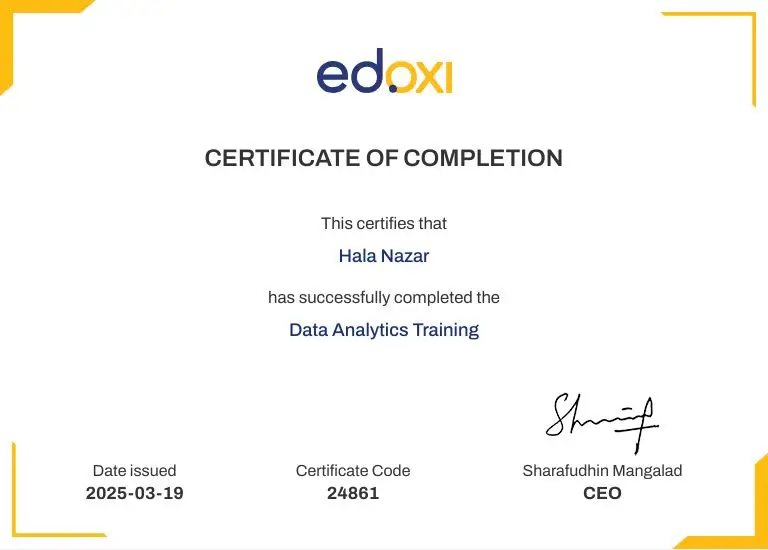
Yes. Upon successful completion, learners receive an Interior Design Certification from Edoxi, validating their technical and practical skills gained through the Interior Design Training.
What career opportunities are available after Interior Design Training in London?
After completing this Interior Design Course in London, learners can pursue roles such as Interior Designer, Junior Interior Consultant, Design Coordinator, Visualiser, or Freelance Interior Designer.
What monthly salary can I expect after completing Interior Design classes in London?
Entry-level professionals completing Interior Design classes in London can expect salaries between £1,800 and £2,800 per month, with higher earnings based on portfolio strength and software expertise.
Is this Interior Design Training suitable for working professionals?
Yes. Edoxi’s Interior Design Training offers flexible schedules, including weekday and weekend batches, making it ideal for working professionals.
Does the Interior Design Course include practical projects and portfolio development?
 Yes. This Interior Design Course in London includes real-world projects, case studies, and portfolio development to enhance employability.
Are the trainers for this Interior Design Training experienced?
Yes. The Interior Design Training in London is delivered by certified trainers with extensive industry and teaching experience.
Can I choose how I attend Interior Design classes in London?
Yes. Edoxi offers classroom, live online, and hybrid options for Interior Design classes, allowing flexibility while completing your Interior Design Course.
Can I join this Interior Design Course without technical drawing experience?
Yes. This Interior Design Course teaches AutoCAD and drawing fundamentals from scratch, making it beginner-friendly.
What industries can benefit from this Interior Design Certification?
This Interior Design Certification supports careers in residential design, commercial interiors, hospitality, retail, real estate, and fit-out companies.
Where are the Interior Design classes conducted in London?
Edoxi’s Interior Design classes in London are conducted in fully equipped training facilities, with options for classroom and instructor-led learning as part of the complete Interior Design Training in London.